
What is it?
Entry Throttling is a method for users to enter a competition every X amount of hours or days. This feature can be set up to be relative to the user’s last entry or from the time the card is published. It is available on any card you can add a data capture form. You may want to use this feature to allow users to register for a competition on a particular card multiple times throughout your campaign. It is also helpful if you wanted to provide the opportunity for users to receive a coupon every X period of time, continually driving traffic to your business. We recommend using entry throttling when you want to limit and prevent coupon exhaustion.How do I set it up?
Step 1: Add a data capture
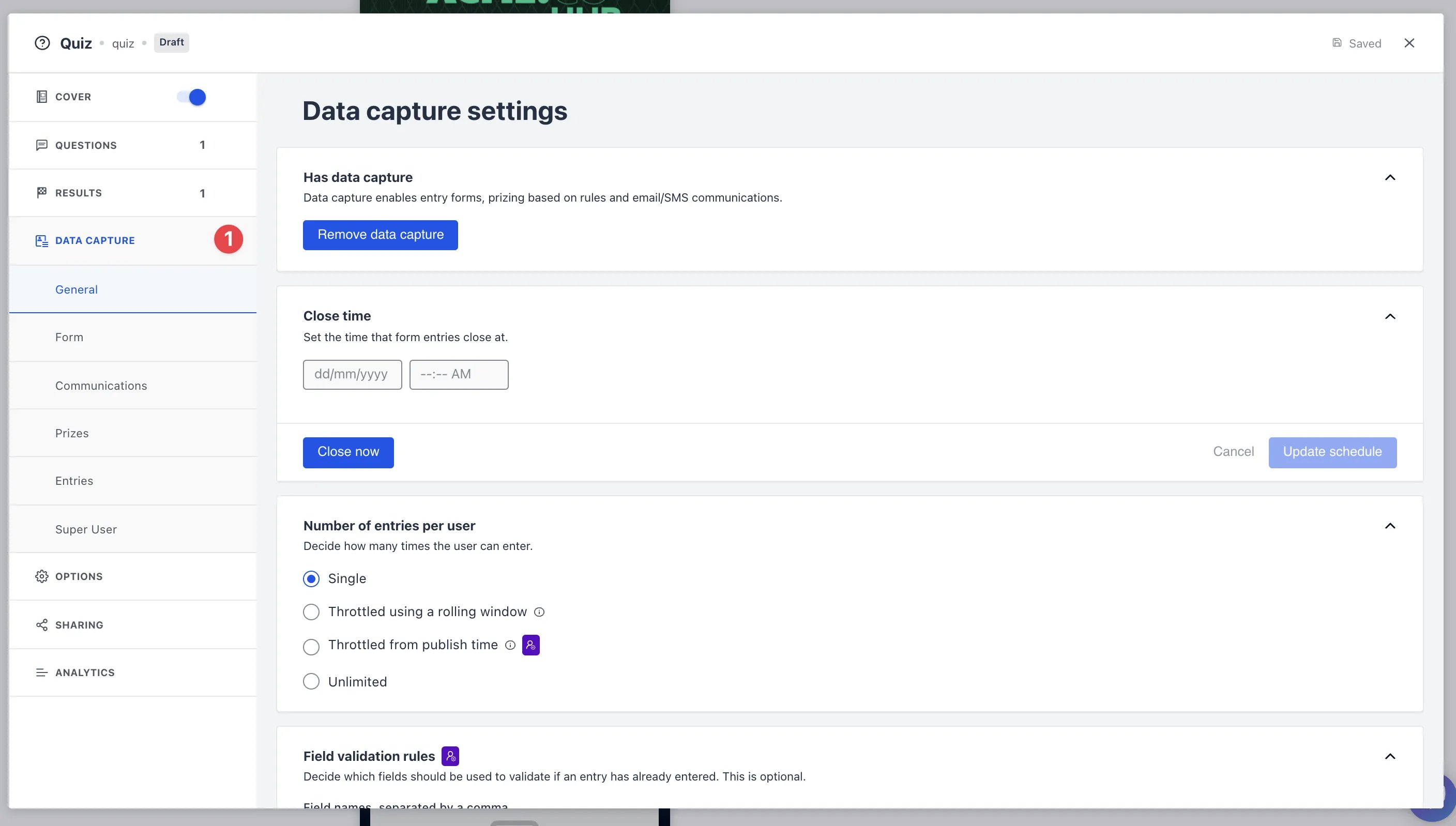
- Clicking on the card will open the editing module
- (1) Click here to add a Data capture
Step 2: Configure your settings
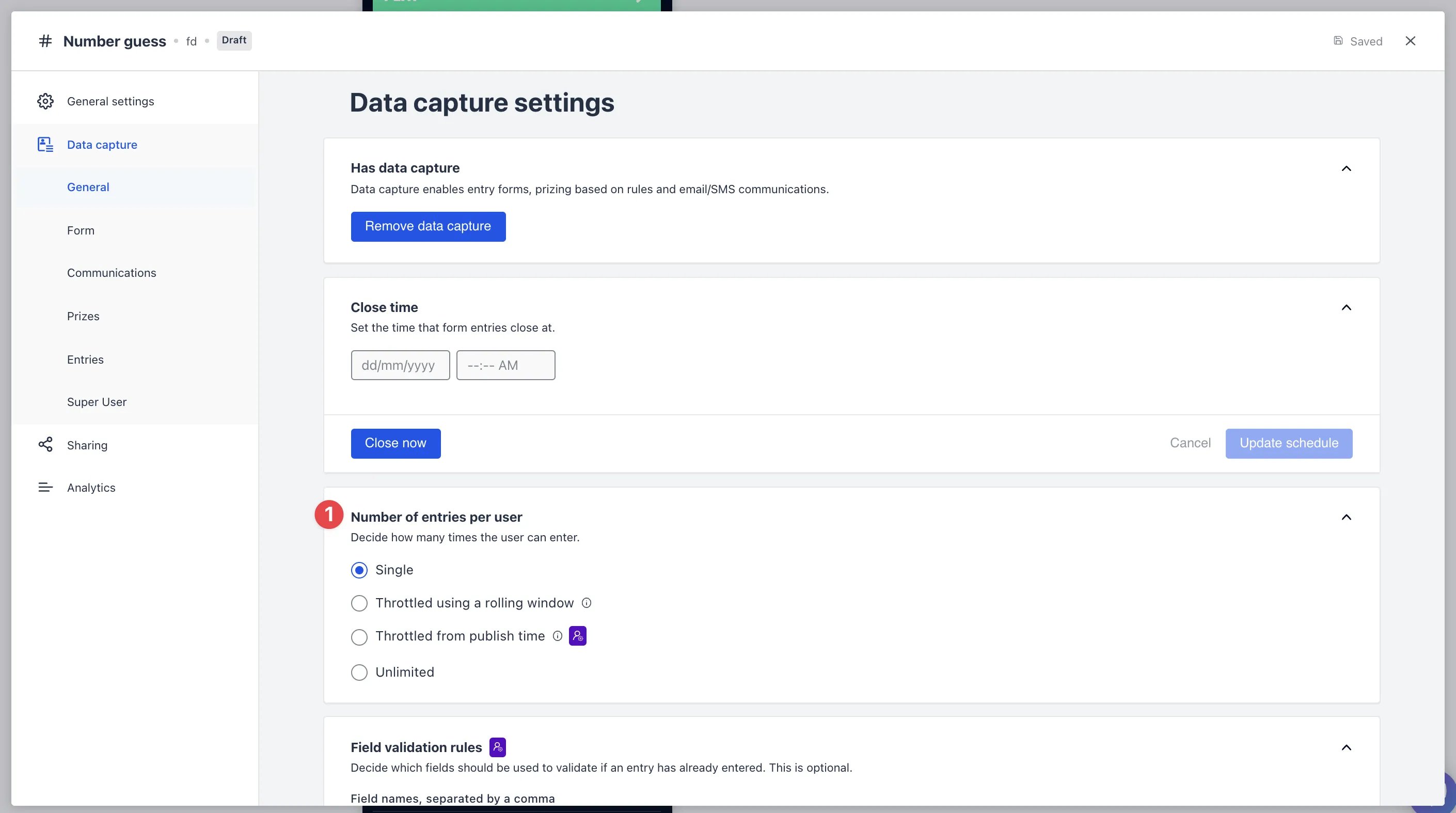
- Single — a user can only enter once.
- Throttled using a rolling window — throttled based on a frequency from the current time (e.g. once per hour: after entering, you wait an hour).
- Throttled from publish time — throttled from the card’s publish time (e.g. once per day, published Tuesday 9am, you entered: you can’t enter again until Wednesday 9am). This option is only visible to Komo super users. Contact your Komo Customer Success team if you need it.
- Throttled using a start time — throttled from a chosen start date/time and time zone (fields shown as starting from plus a time zone picker). Use this when you want limits to reset at a fixed time, e.g. midnight in the promotion’s time zone.
- Unlimited — no restrictions.
FAQ
Can I limit entries per day and also cap total entries per person (e.g. 2 per day, max 10 overall)?
Can I limit entries per day and also cap total entries per person (e.g. 2 per day, max 10 overall)?
Not as two stacked limits. Each card uses one entry-limit option, and the Global entry limit counts everyone’s entries combined, not per person. A workflow can tag or flag a contact but can’t block their next entry.To get a per-person total, combine a daily throttle with a fixed campaign length (e.g. 2 entries per day over a 5-day promotion means at most 10 per person) and state that in your terms and conditions.
What does the Global entry limit do?
What does the Global entry limit do?
The Global entry limit lives in the card’s Close time settings (Update Close Time modal). It is the total number of qualified entries allowed for the whole competition across all users. Once that total is reached, the competition closes.The Show remaining entries count toggle shows remaining entries in the card footer.