
What is it?
Competition Entry Rules are custom disqualification rules that run for every data capture entry on a particular card. Entry Rules are run in order, and the first rule that matches will be applied. If no rules match, the entry will be accepted.This feature works to disqualify spam or unwanted entries, as well as ensuring all other entries remain qualified to enter your competitions.How do I use it?
- Step 1: Navigate to Entry Rules in Workspace Settings
- Step 2: Select your Rule Type
- Step 3: Select your Rule Operator
- Step 4: Enter your Value/s
- Step 5: Select your Rule Action
- Step 6: Select your Hubs
- Step 7: Order your Entry Rules
- Step 8: Monitor your Entry Rule
Step 1: Navigate to Entry Rules in Workspace Settings
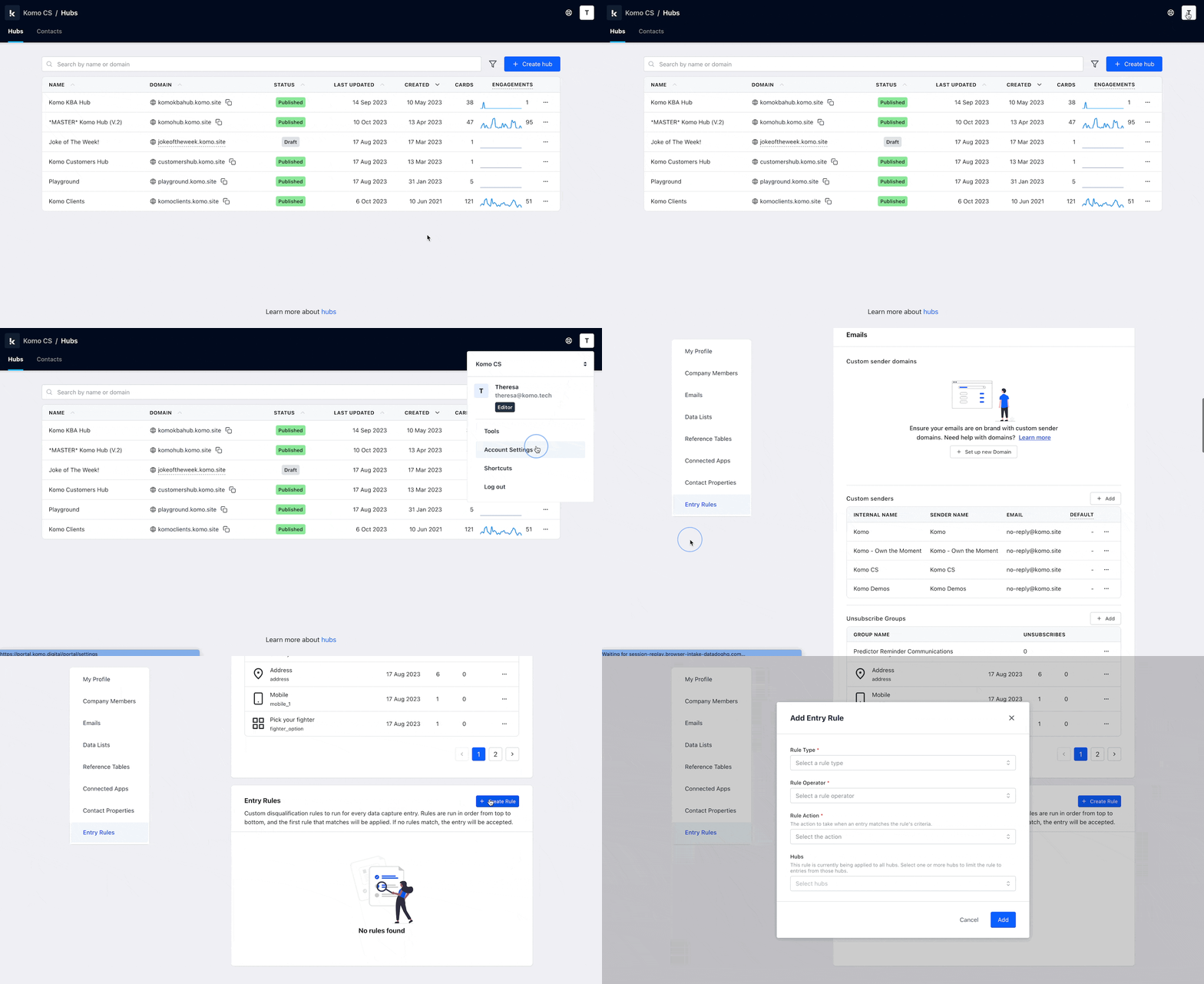
- (1) Navigate to your Workspace in the Komo Portal from the main dashboard.
- (2) Click on the Settings icon (gear icon) in the left navigation panel.
- (3) Select Entry rules from the settings menu.
- (4) Click on Create entry rule to begin setting up your new rule.
Step 2: Select your Rule Type
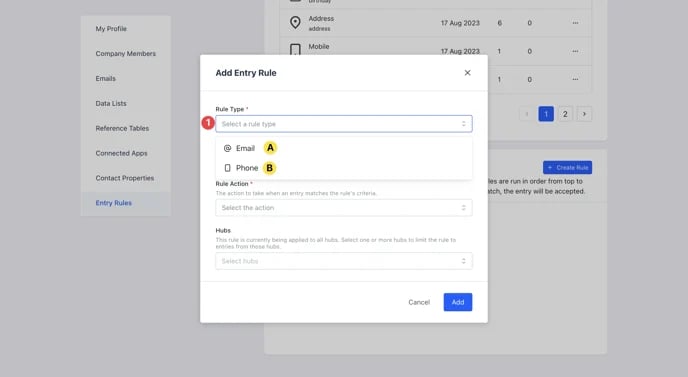
- (1) Select your rule type from the dropdown menu.
Your Rule Type is the data property you wish for the rule to apply to. Here, you can choose from:
- Email - Scans all incoming email addresses
- Phone - Scans all incoming phone numbers
- IP Address - Scans all incoming IP addresses to prevent entries from specific locations or known spam sources
Step 3: Select your Rule Operator
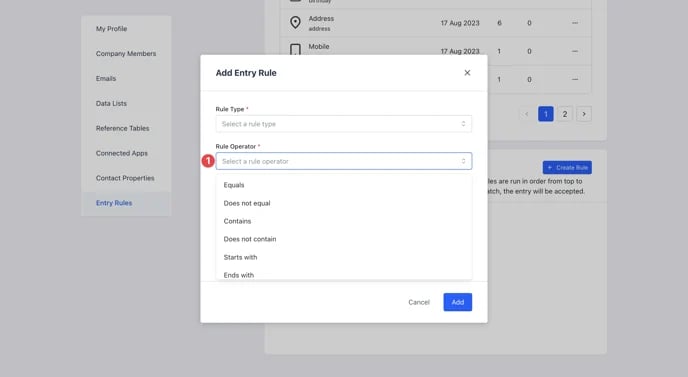
-
(1) Select your Rule Operator from the dropdown menu.
Your Rule Operator is the criteria of the Rule Type you wish to scan for. Below is a description of each rule:
- Equals: anything that matches this rule exactly.
- Does not equal: anything that doesn’t match the rule.
- Contains: where part of the rule is contained in the email/phone.
- Does not contain: where the email/phone doesn’t include part of this rule.
- Starts with: where the email/phone begins with this rule.
- Ends with: where the email/phone ends with this rule.
- Regex match: a short for regular expression, and is a sequence of characters that specifies a match pattern in text. This pattern-based matching is used to configure more complex entry rules. You can learn more about Regex Matches here.
Step 4: Enter your Value/s
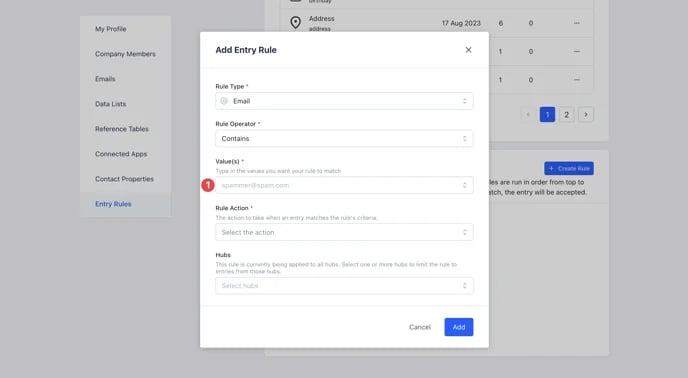
- (1) Input the value/s you wish for your rule to search for when running the rule.
Here, you can input whole email addresses or single text patterns you wish to search for with your rule. Add as many as you like here, but make sure you create different rules for different Rule Operators.
Step 5: Select your Rule Action
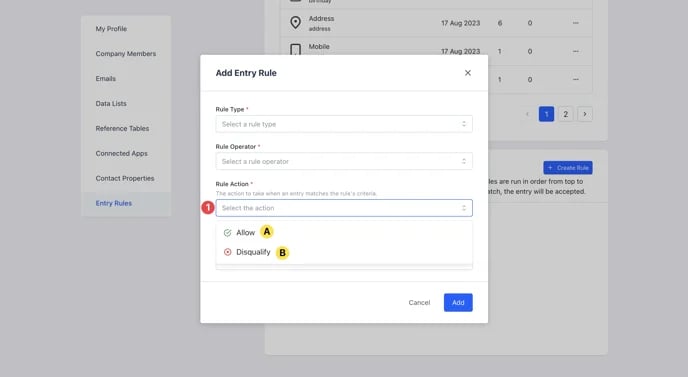
- (1) Select your Rule Action from the dropdown menu.
Here, you can choose to either Allow (A) or Disqualify (B) the value/s you have used in this particular rule.
Step 6: Select your Hubs
- (1) Select the Hub/s you wish for this rule to apply to from the dropdown menu then click on Add.
Step 7: Order your Entry Rules
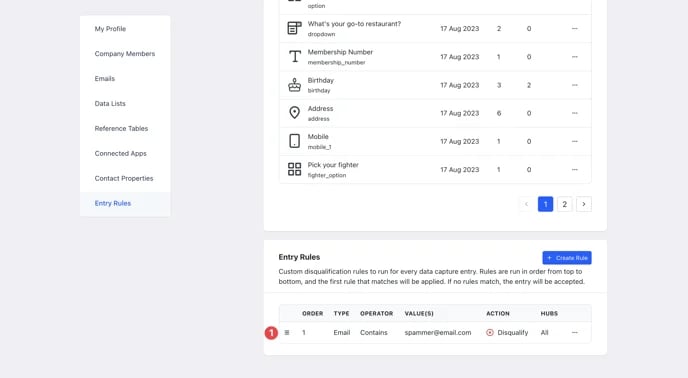
- If you have created more than one Entry Rule, it’s important to order them. Your rules will run in the order you select, number 1 being the first rule to run.
- The first rule that matches will be applied. If no rules match, the entry will be accepted.
- (1) reorder your Entry Rules, use the burger icon to drag and drop them accordingly.
Step 8: Monitor your Entry Rules
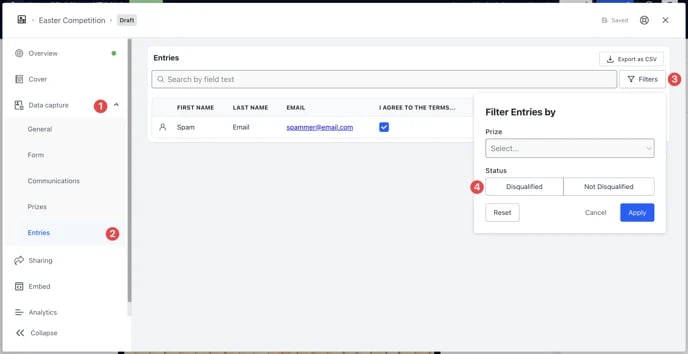
- To monitor your new Entry Rule, navigate to an Engagement Hub and click on the card to open the editing modal.
- (1) Navigate to the Data capture tab.
- (2) Navigate to the Entries tab of the data capture dropdown menu.
- (3) Use the search bar to find specific entries or click on the table columns filter button to customize what information is displayed.
- (4) Filter entries by Status (Qualified/Disqualified) using the column sorting options.
- (5) Use the Export entries button to download filtered results for analysis.
You will now see your competition entries filtered by either their ‘Qualified’ or ‘Disqualified’ status, depending on your filtering choice.
 This is how you will monitor how effective your Entry Rule is at your desired action, allowing you to make changes to the rule as and when needed. To make changes to your Entry Rules, simply navigate back to Workspace Settings as in Step 1, click the 3 dots next to any rule and select edit.
FAQ
How do I use a Rejex Pattern to configure an Entry Rule? A regular expression (Regex) is a sequence of characters that define a search pattern. As a part of the Entry Rules feature, we have included Regex as a Rule Operator to help you configure more complex Entry Rules. Here are some examples of how you might write a Regex for the purpose of pattern-based matching in your Entry Rules:- If you want to find a specific sequence of characters, you can simply write those characters in the pattern.
- If you’re looking for any single character from a set of options, you can enclose those options in square brackets. For example, [0123456789] will match any digit.
- To find zero or more occurrences of the character or group of characters that come before it, you can use the star (*) symbol.
- If you need to find one or more occurrences of the character or group of characters that come before it, you can use the plus (+) symbol.
Keep in mind that regular expressions can become quite intricate and hard to understand. So, it’s a good idea to use tools like regex testers to help you debug and optimize your patterns. Try https://regex101.com/.