
How do I do this?
Step 1: Clone the Card
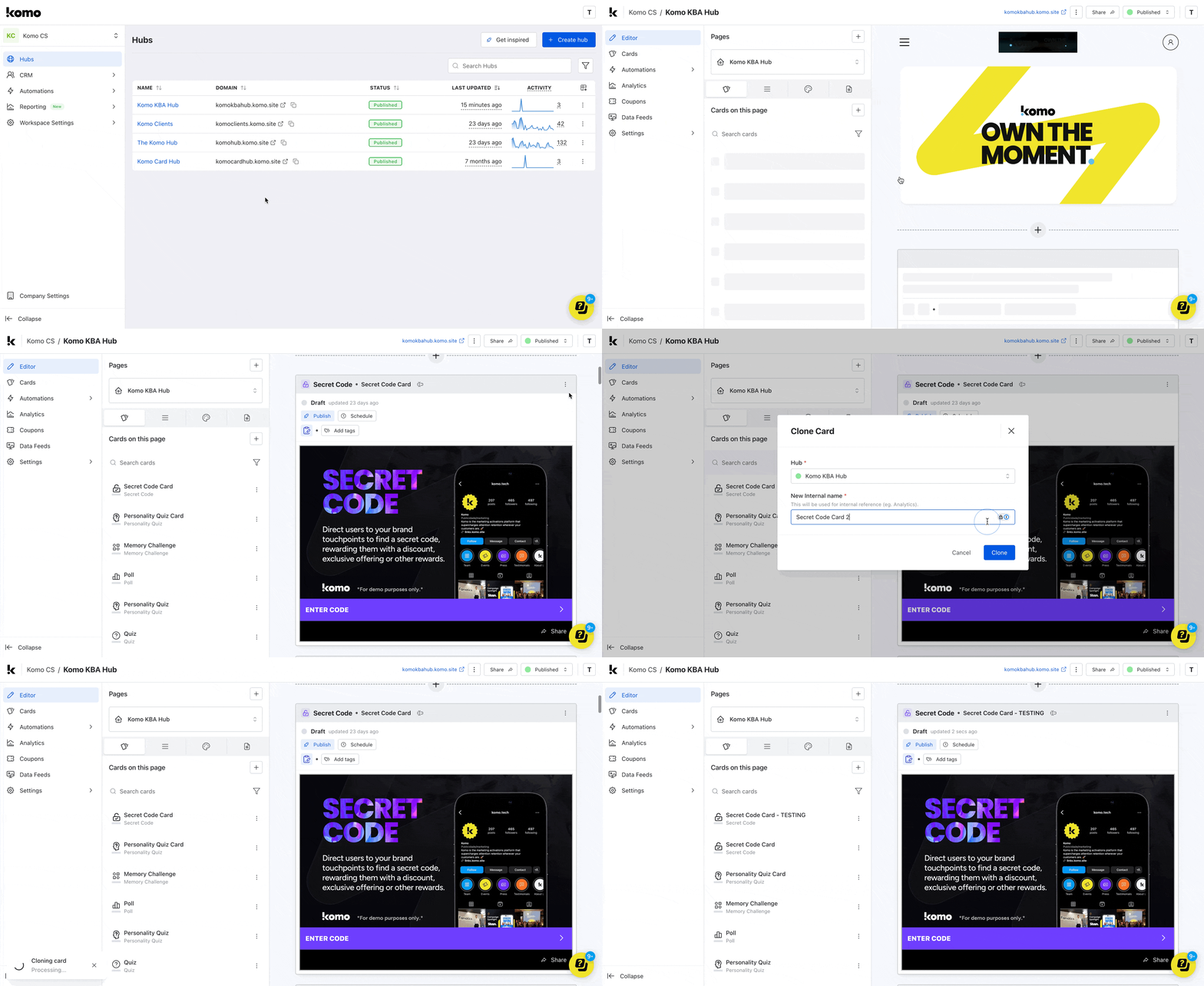
- Navigate to your Engagement Hub.
- Scroll to the card you want to test.
- Click on … and then select Clone.
- Add the copy Testing to the internal name to differentiate between the original and the cloned.
We recommend cloning cards for testing as once you interact with the content, this will impact the card analytics.
Step 2: Test the Content
There are two ways to test your content prior to launching.- Preview: This allows you to view the journey and experience of just the card/content. The preview will appear as a pop-up over the editor.
- Single Card View : You can preview the card on the Hub to see how this would potentially look with your Hub styling.
Preview the Card
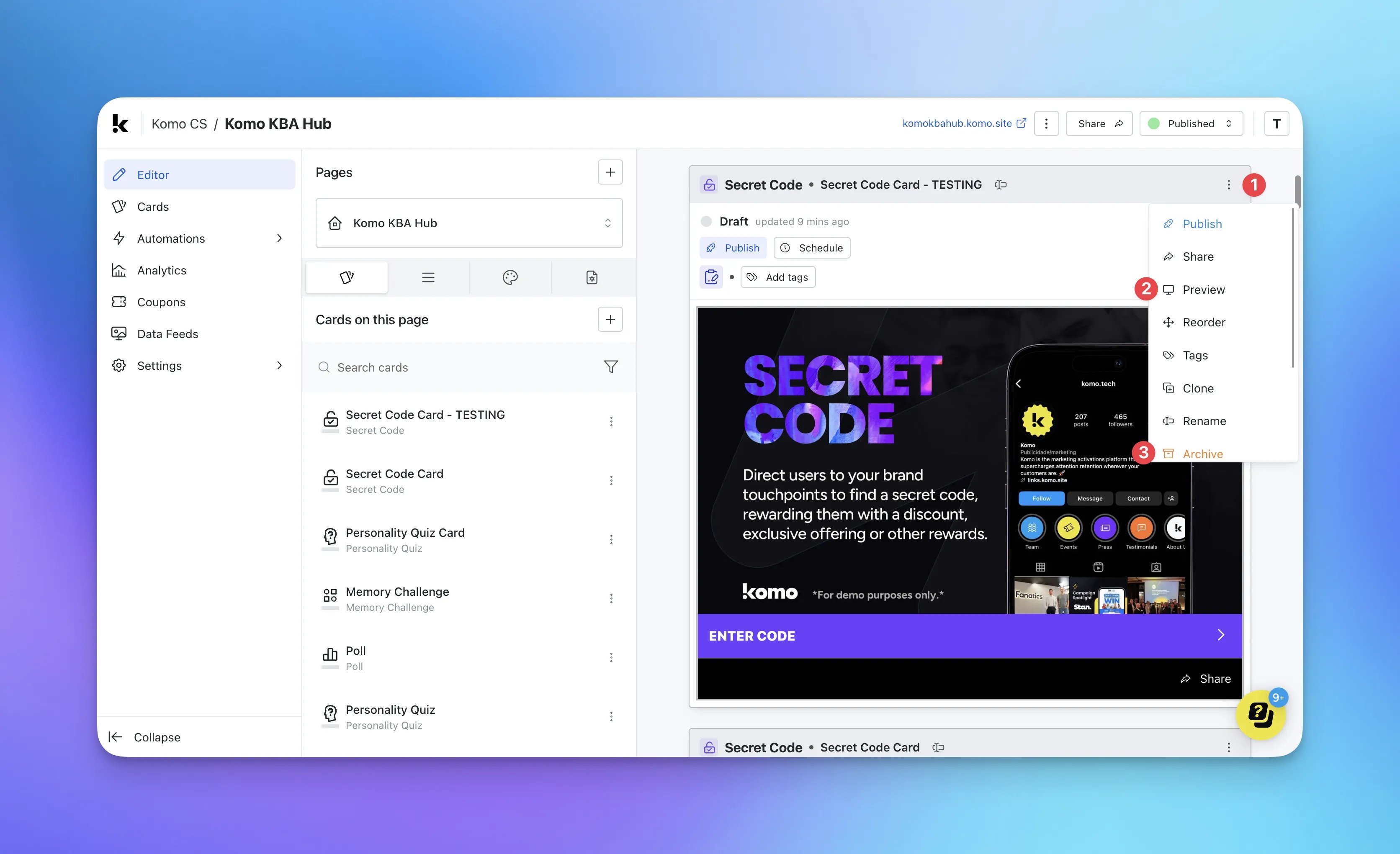
- (1) Clicking on … opens additional settings for the card. (2) Click on Preview to test the card.
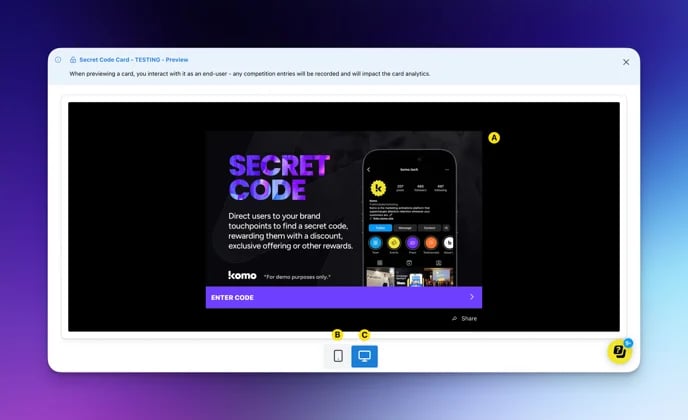
- (A) Here you can play through the experience as a potential end user.
- (B) + (C) You have the option to test the card in a mobile view or desktop.
- (3) After you have finished testing your game, archive the testing card to avoid confusion with the original.
Single Card View
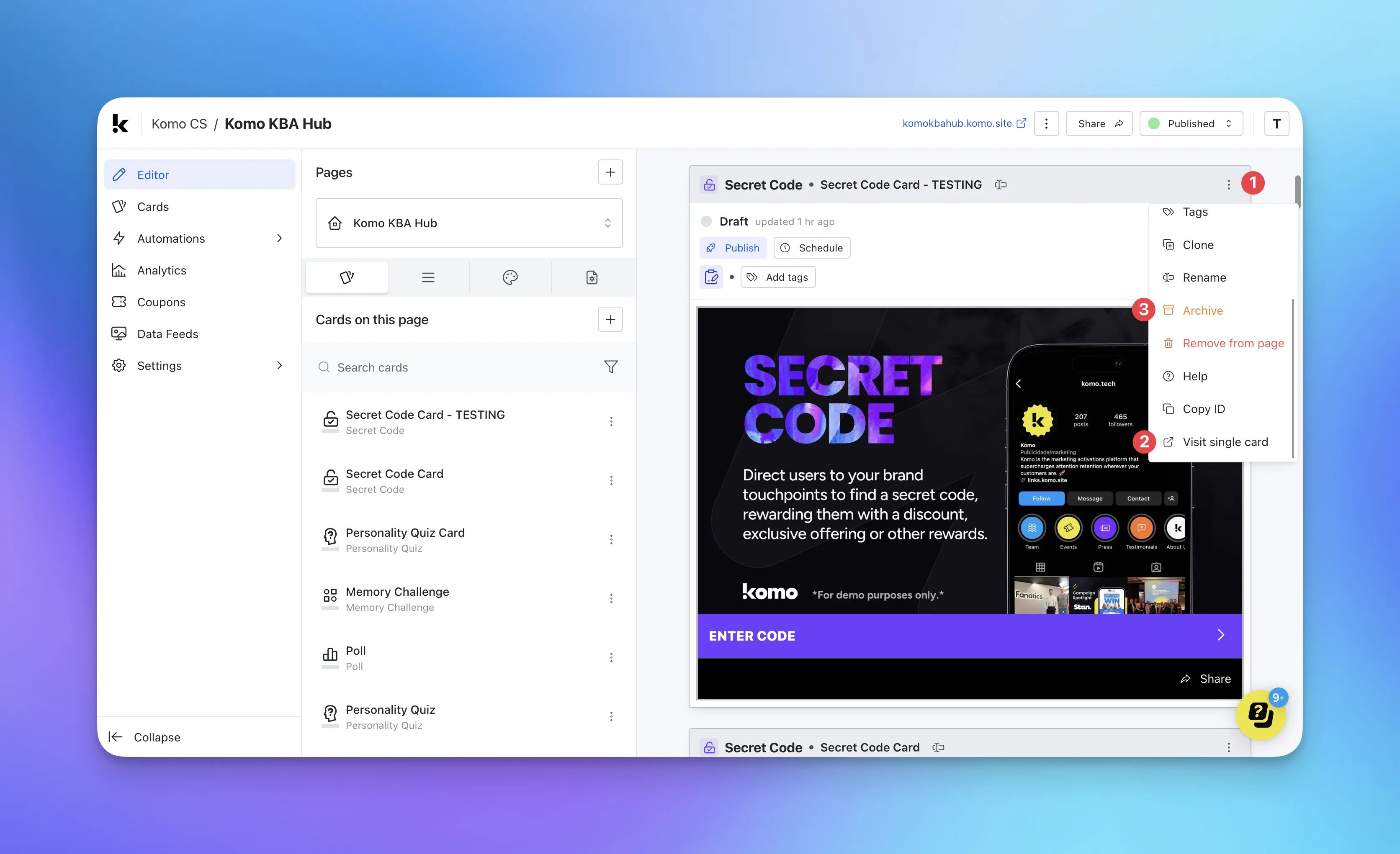
- (1) Clicking on … opens additional settings for the card.
- (2) Click on View single card to test the card.
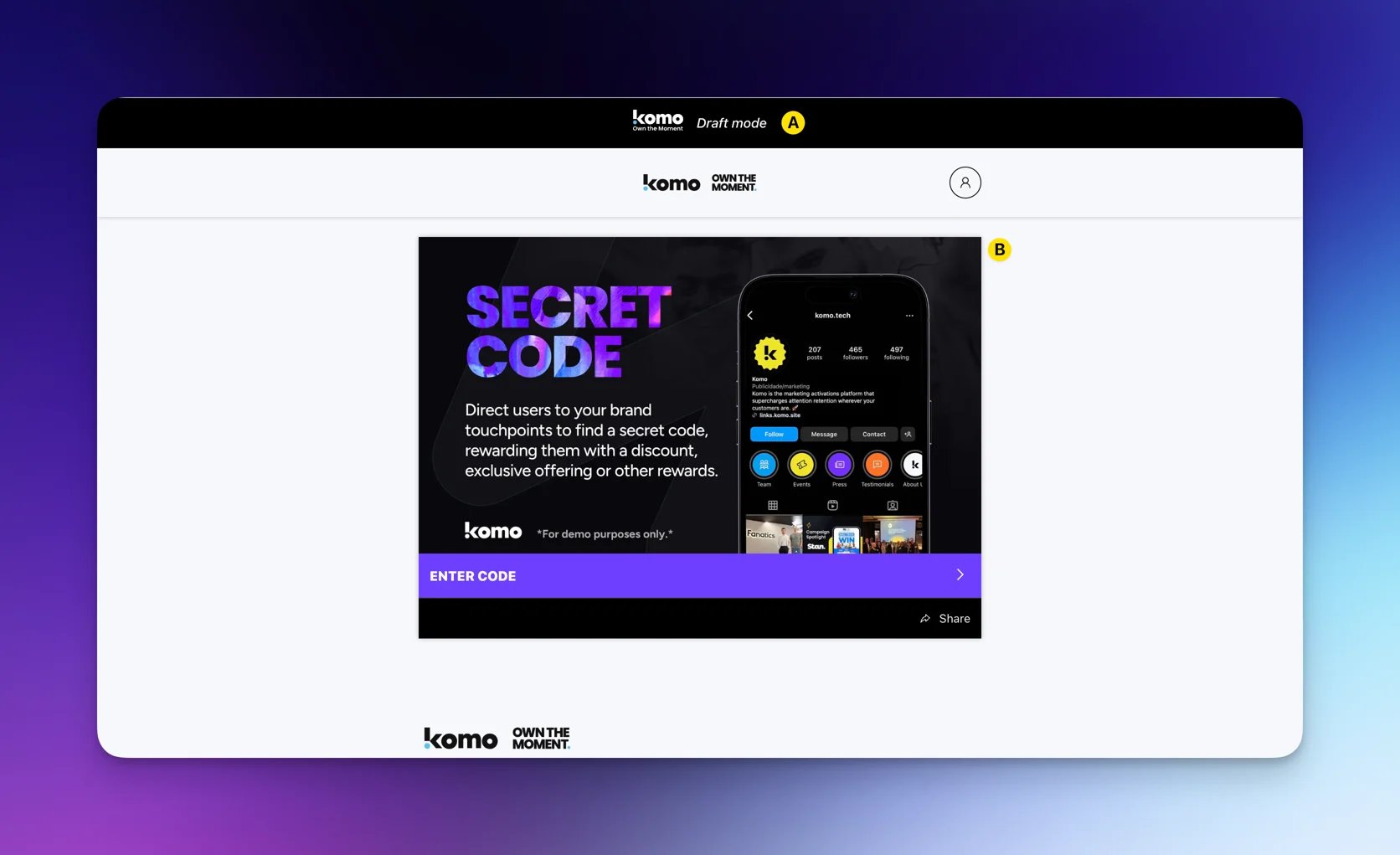
- (A) When previewing a draft card, you will see the draft banner to make you aware the card is still in draft mode.
- (B) Click on the card and preview the experience.