
What is it?
Personalised prizing lets you send separate SMS or email communications—and attach different Digital Coupons or offers—based on a user’s selections or outcomes during an interactive card. For example, if a Poll asks which product flavour a customer prefers, you can automatically send a coupon for the flavour they chose. If a Personality Quiz returns a specific result, you can send a prize tailored to that outcome.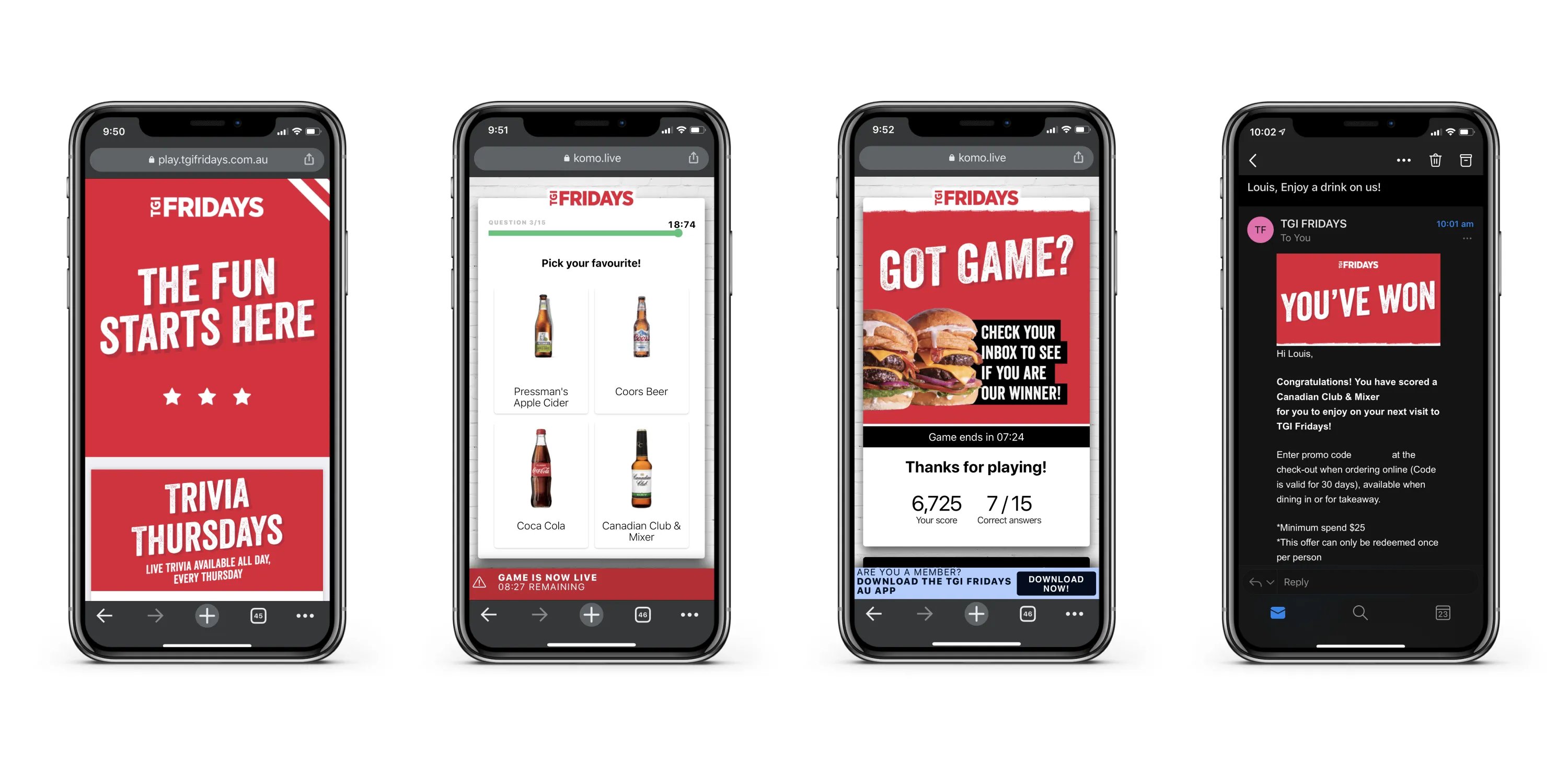
Personalised prizing does not apply to every card type. It is available on cards where users make selections or answer questions, such as Quiz, Poll, Personality Quiz, Live Trivia, and Live Predictor.
Why would I use it?
Personalised communications increase the relevance of your offers and improve redemption rates. Instead of sending the same prize to every entrant, you can match the reward to what each person told you they want or how they engaged with your content. This is especially useful for:- Product sampling and flavour or variant selection
- Market research questions tied to targeted follow-up offers
- “Everyone wins” campaigns where the prize still varies by response
When should I use it?
Personalised prizing works best when you have several different “everyone wins” prizes available for a single card—for example, multiple Digital Coupons linked to different poll options or quiz results. You can also use it to send targeted marketing communications within prize emails based on user responses, without running a traditional winner-takes-all competition.How do I set it up?
- Step 1: Create digital coupons
- Step 2: Add a new content card
- Step 3: Build out your content card
- Step 4: Add data capture
- Step 5: Create a prize
- Step 6: Award prize rule
- Step 7: Add communications
- Step 8: Additional prizes
Step 1: Create digital coupons
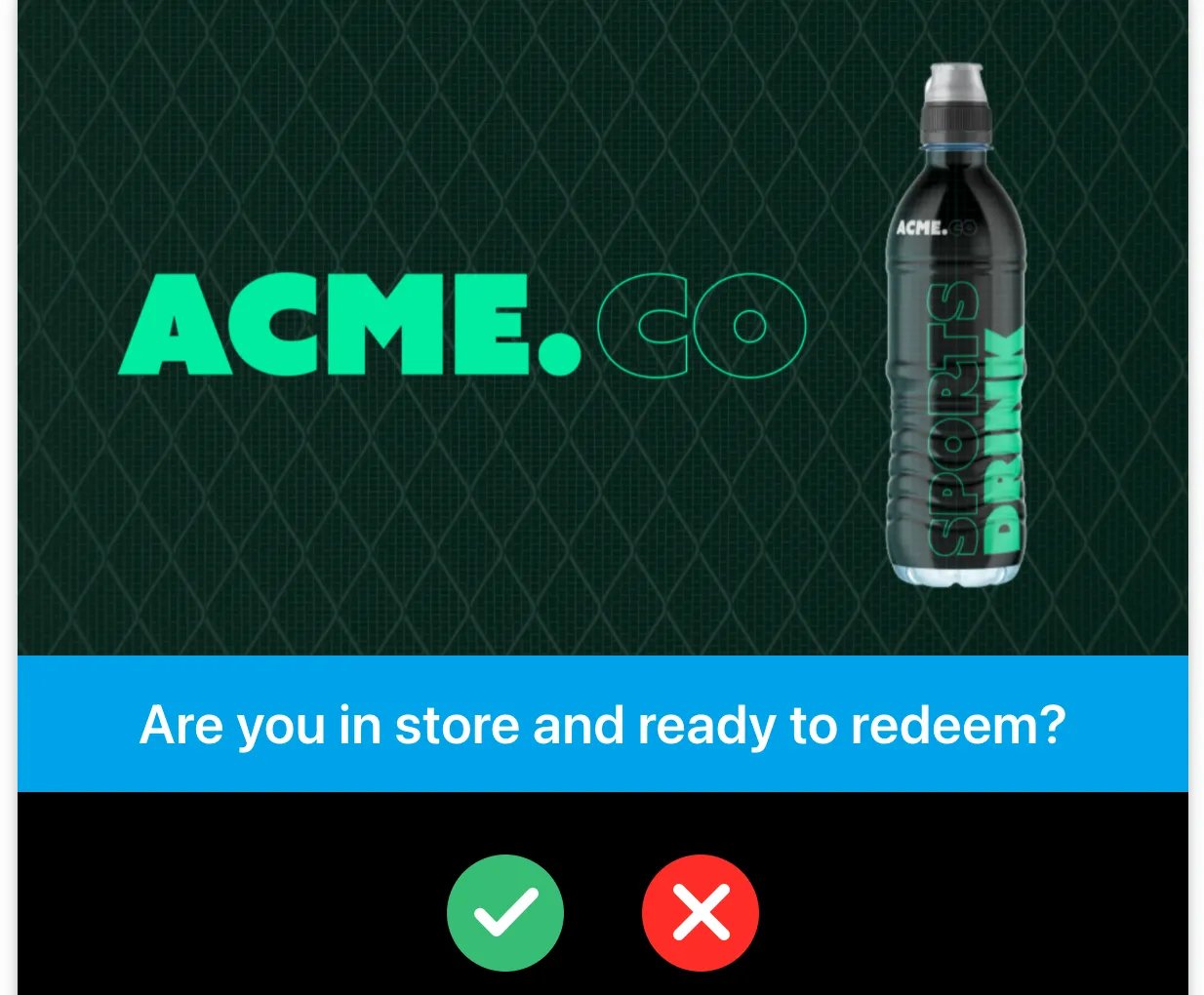
- Create the individual digital coupons you plan to offer Click here to learn how to create digital coupons
Step 2: Add a new content card
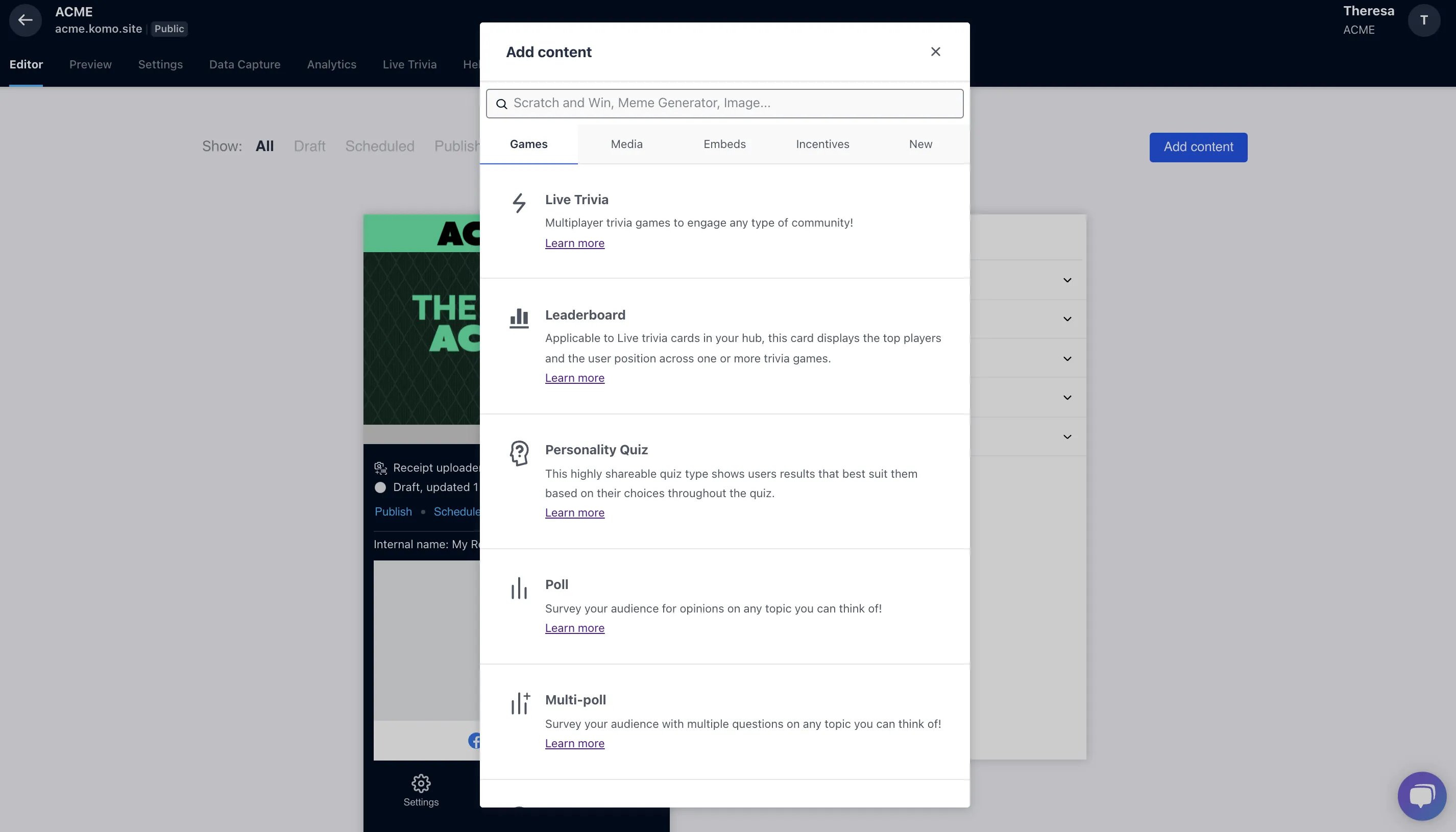
- Return to your Engagement Hub and add a new content card with a competition attached.
Step 3: Build out your content card
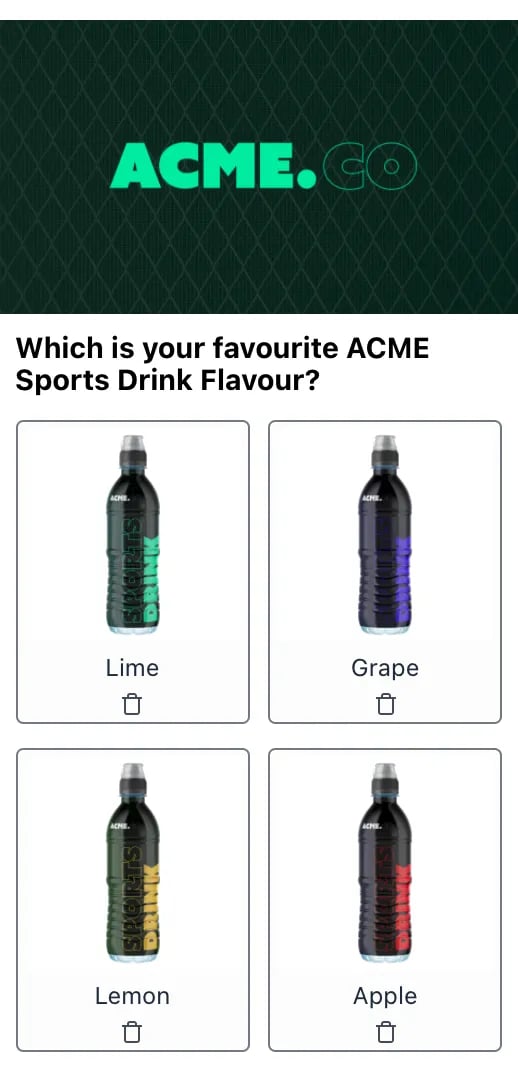
Step 4: Add a data capture
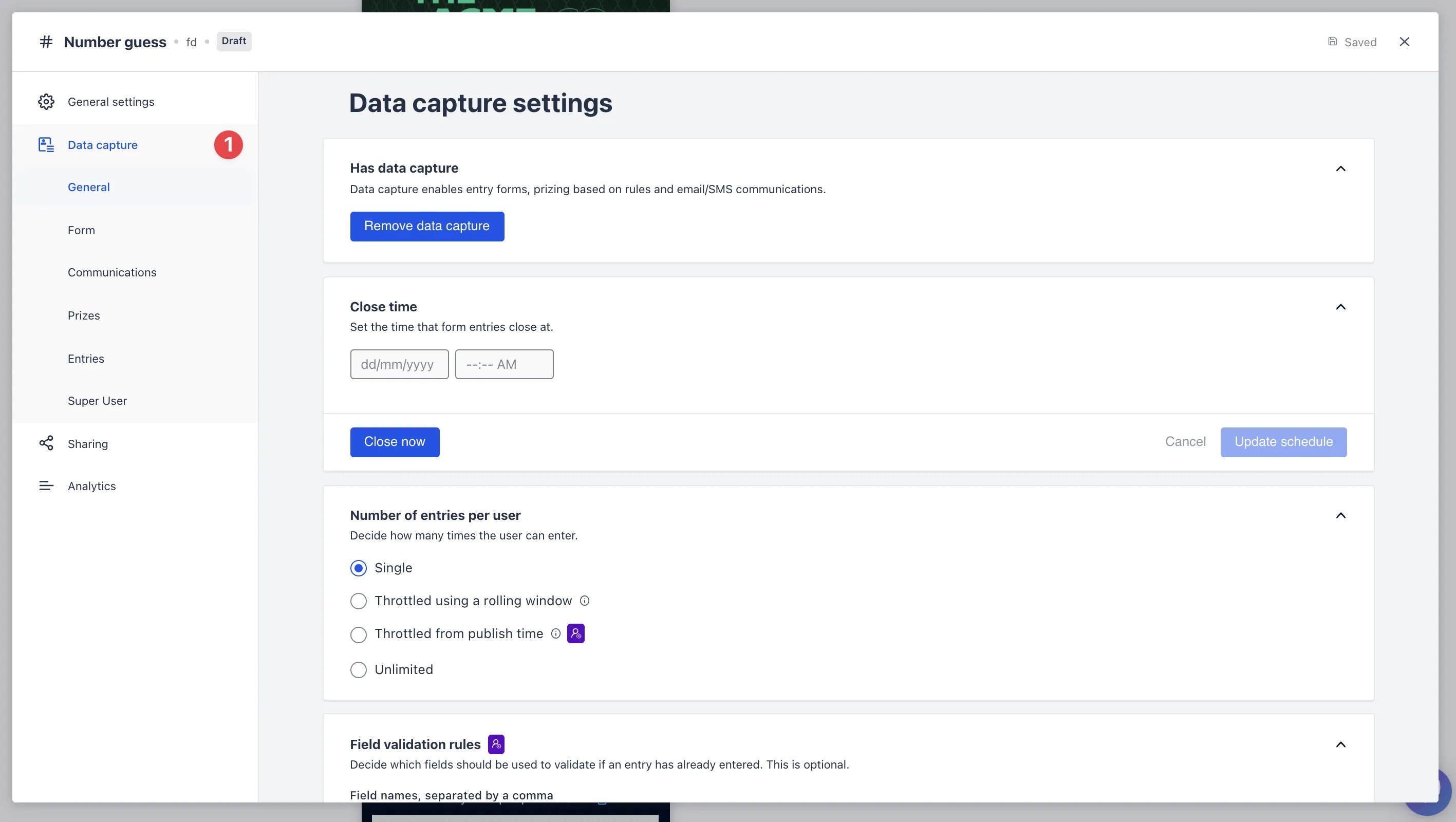
- Clicking on the card will open the editing module.
- (1) Click here to add a Data capture
Step 5: Create a prize
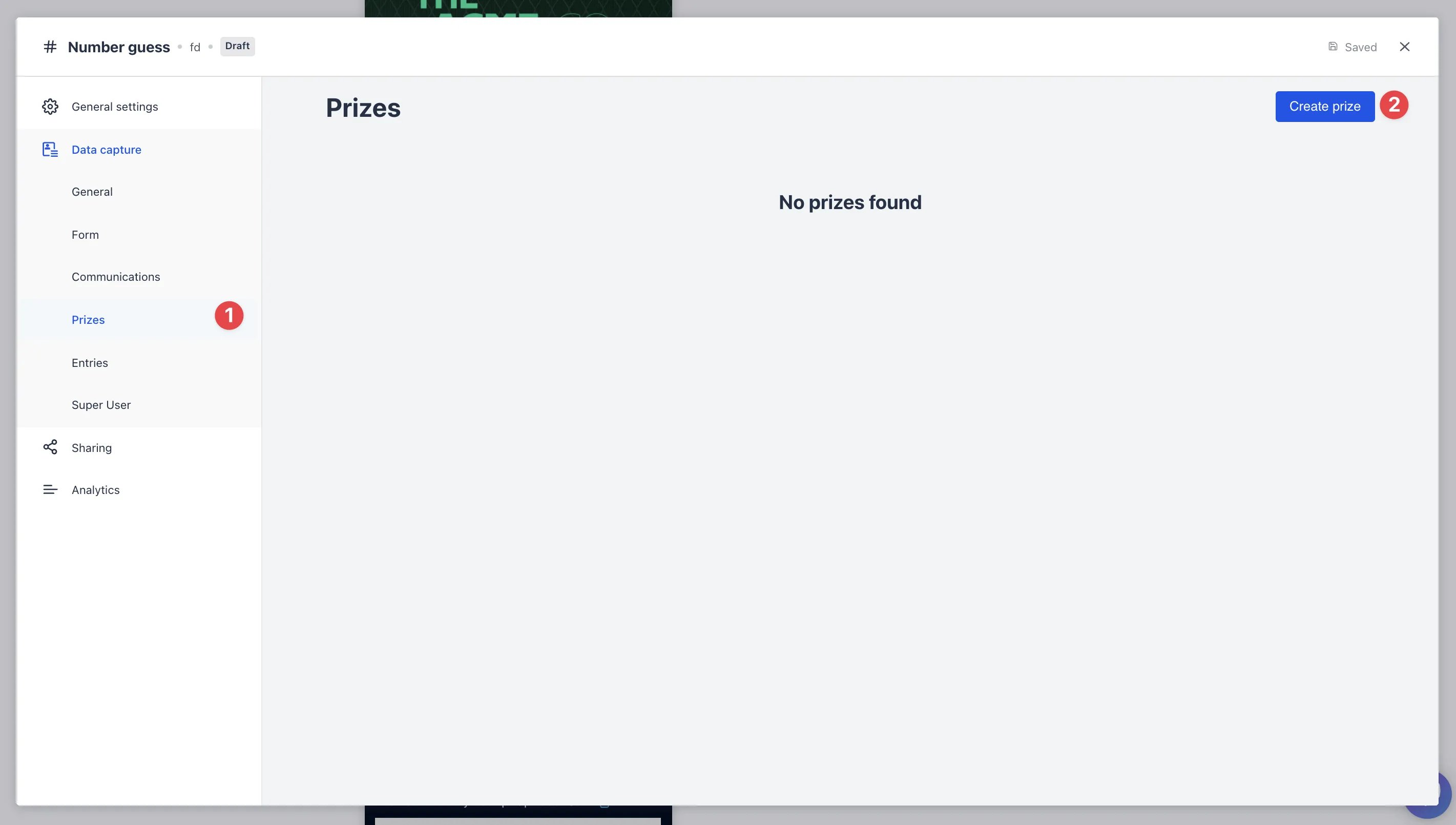
- (1) By clicking on the prizes tab will provide you with an overview of your created by prizes. Note that the prizes tab relates to all communications relating to prizing and will be primarily, but not necessarily, be distributed post-competition closure.
- (2) By clicking here you can begin the process of creating a new prize.
Step 6: Award prize rule
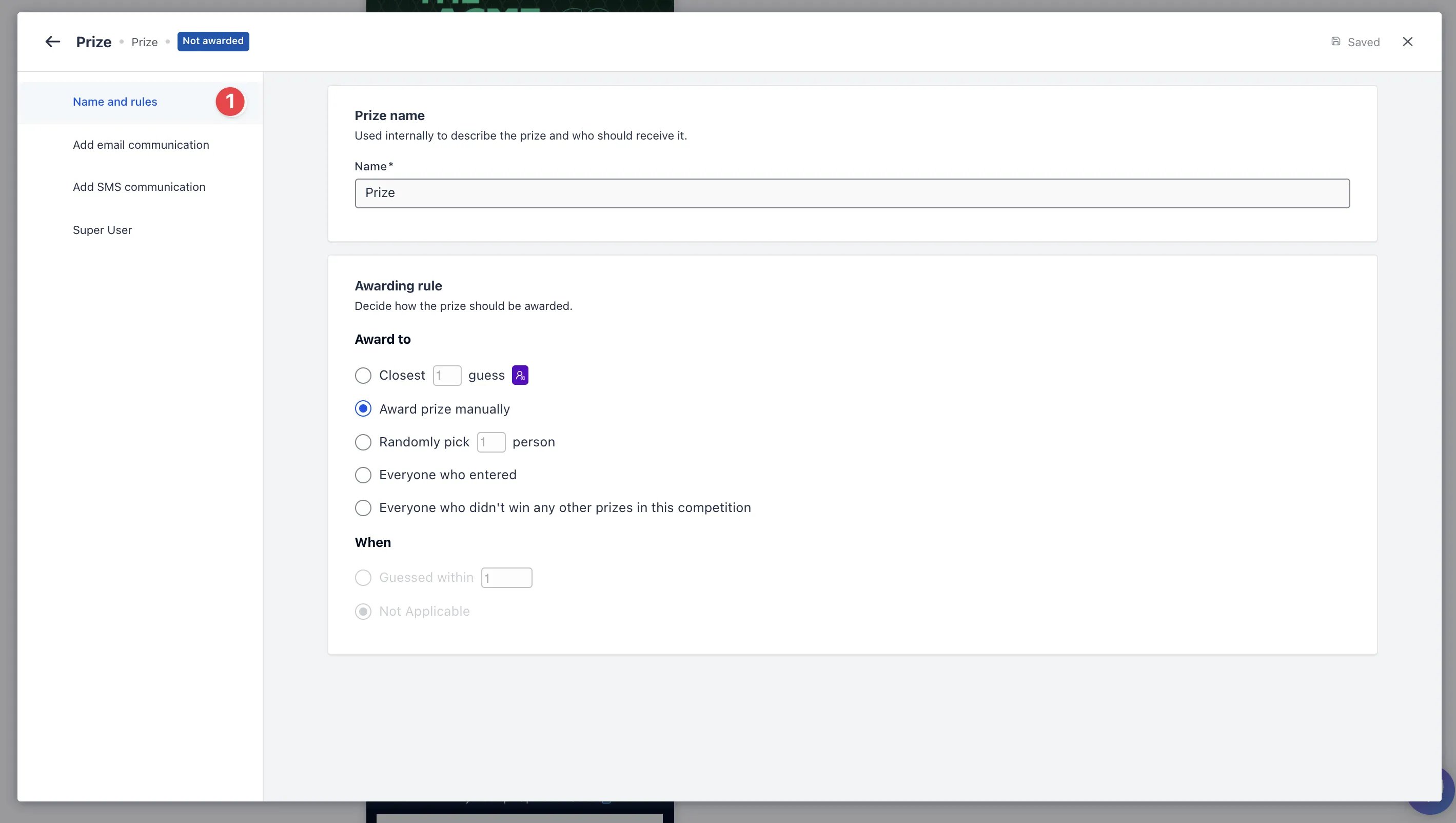
- (1) Click “Names and rules” to set the prize to award those who select the corresponding coupon offering.
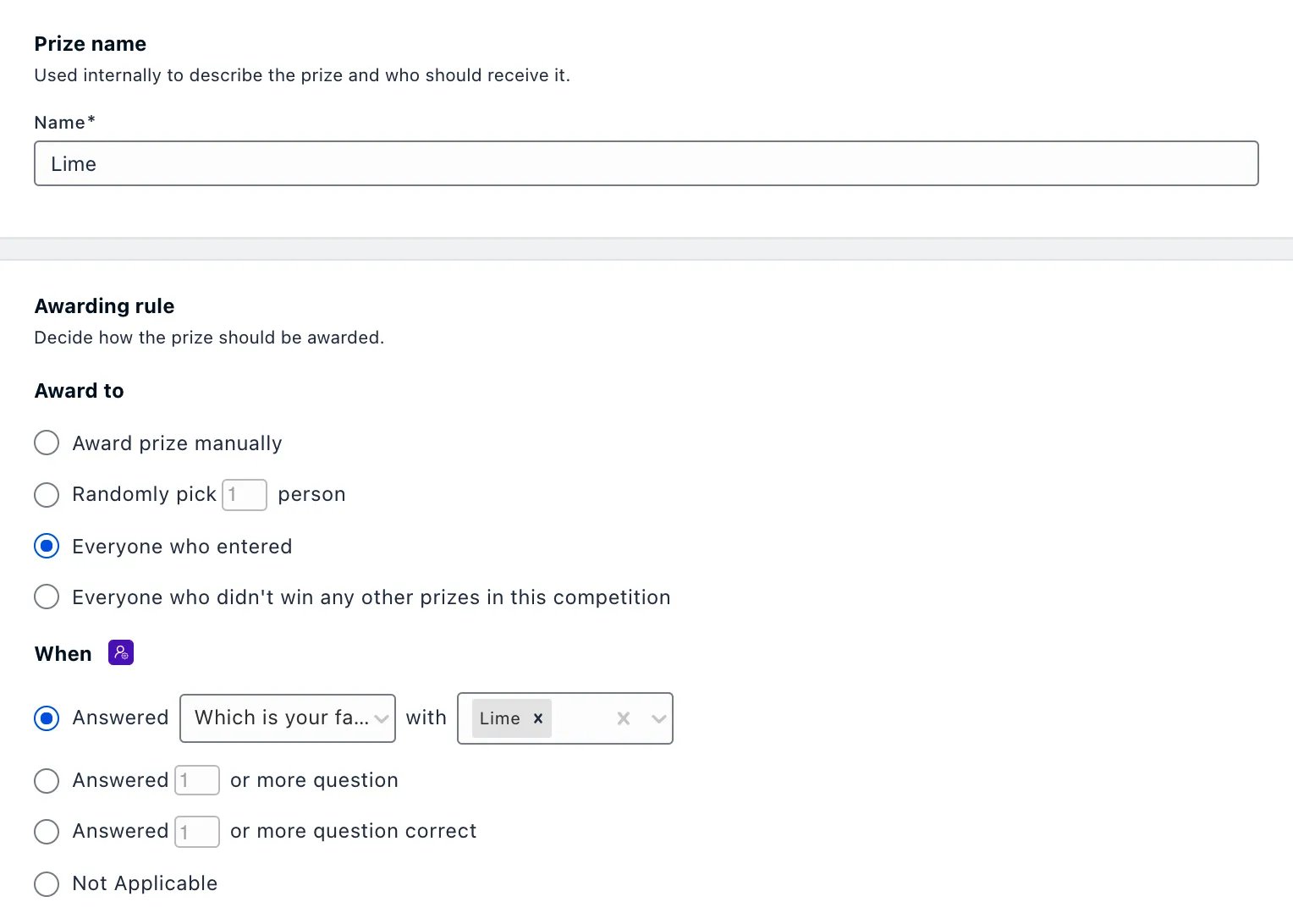
An example below this prize will be awarded to people who selected Lime in the earlier question
An example below this prize will be awarded to people who selected Lime in the earlier question
Step 7: Add communications
-
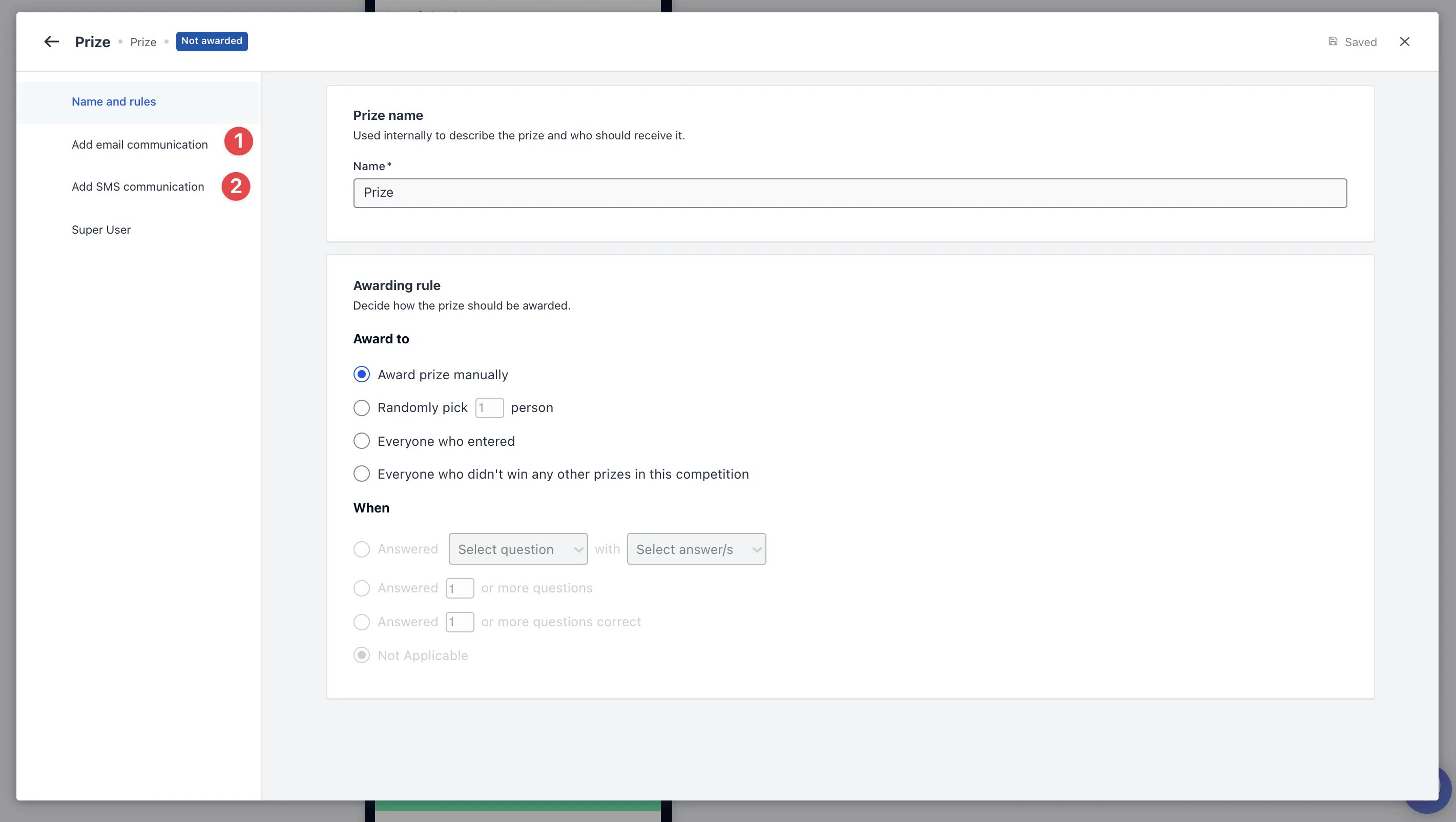
Click on (1) Add email communication and/or (2) Add SMS communication to draft the message that will be sent to the user and attach the corresponding coupon.
Attaching Coupons
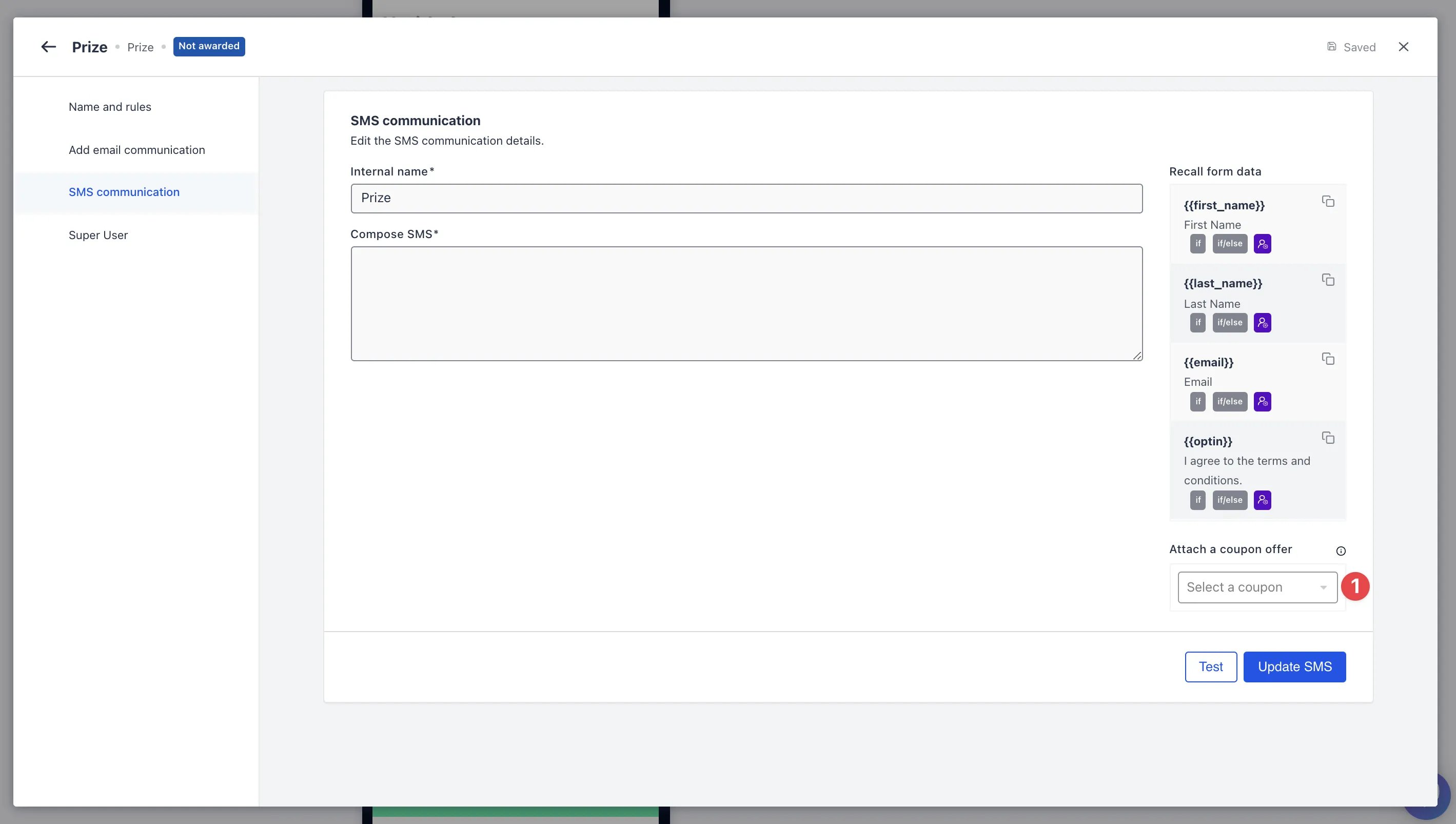
- Make sure to attach a coupon in your communication.
-
Select the desired coupon offer.
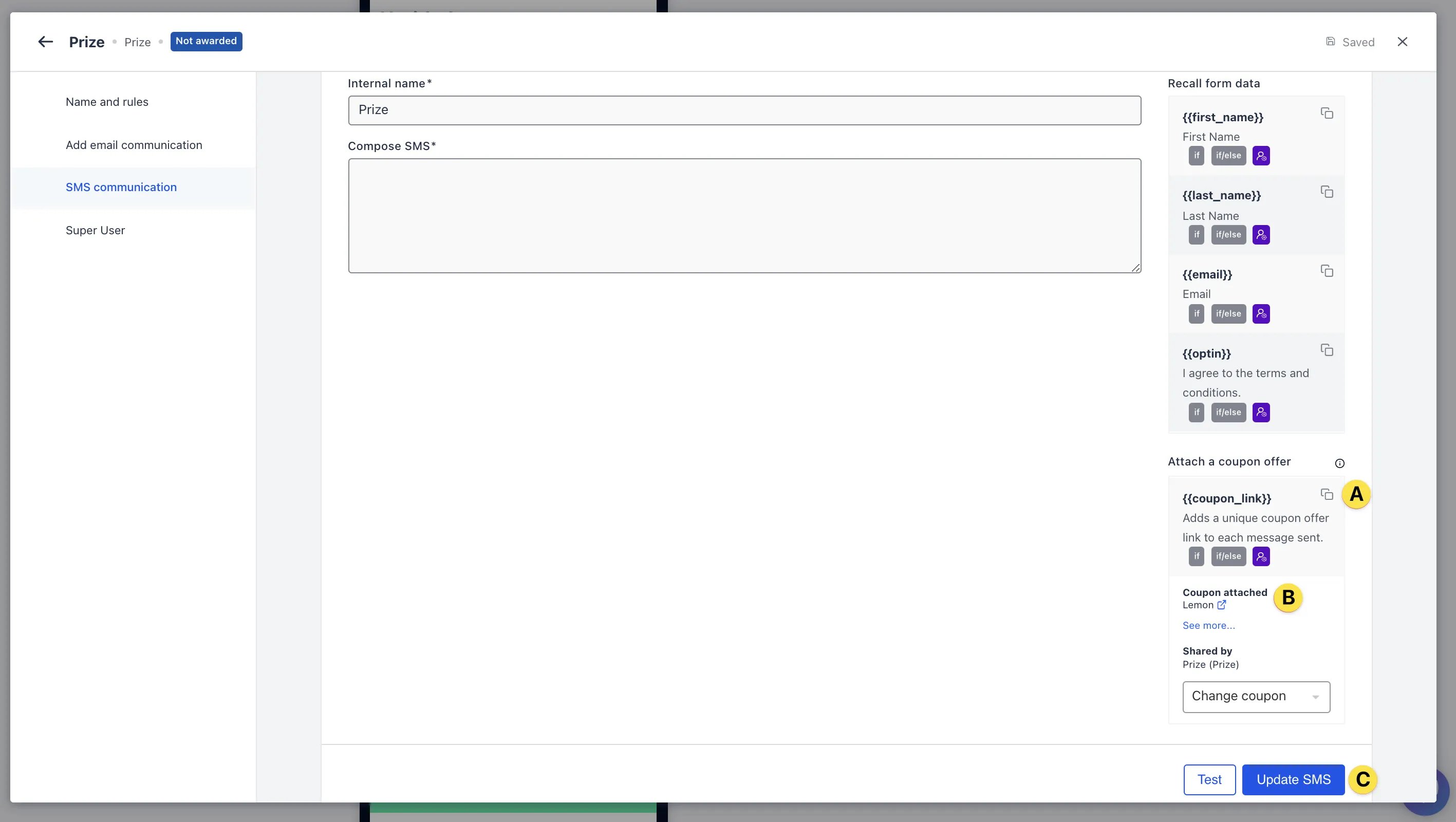
- (A) Click on the square tab to copy the coupon link to paste into your message.
- (B) Here is a preview of the coupon you have selected.
- (C) Once you have completed the message that will be sent to users, click on Update on the bottom.
Step 8: Additional prizes
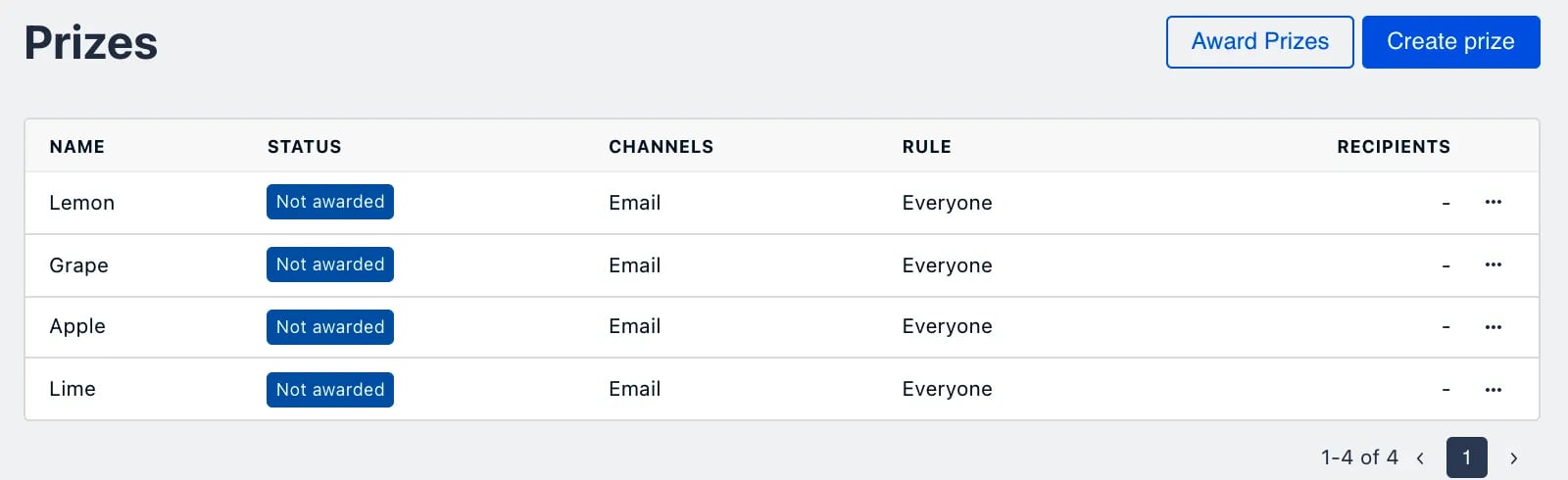
- Repeat steps 5-7 for the other coupon offerings.