
What is it?
The Secret Code Card requires users to enter a specific “secret code” to access a competition or exclusive content. With this card, you can drive traffic to any physical or digital location where users must find the code to access exclusive content, enter a competition, or instantly receive a digital coupon. The Secret Code Card is commonly used for increasing sales by driving foot traffic into your stores. This can be achieved by offering discounts to consumers who successfully find and enter the code.How do I build one?
Step 1: Add a Secret Code to your Hub
- Navigate to your Engagement Hub
- Once there, click the Plus icon, then select Games and then Secret Code
- You will then see your new card has been added to your Hub
Step 2: Add a Cover image
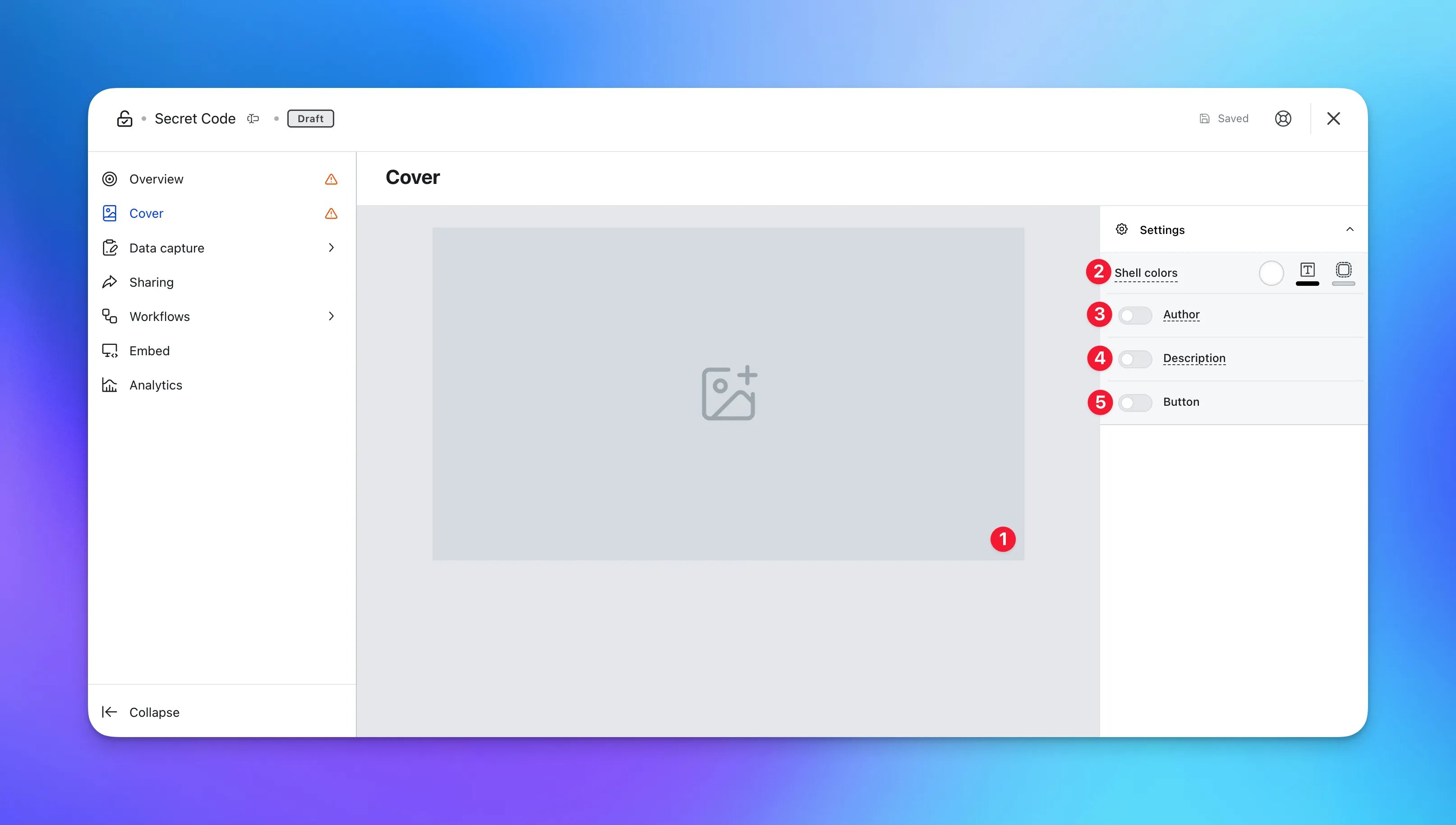
- Clicking on the Secret Code will open the editing module
- (1) Here is where you’ll add your Cover image
- (2) Set the Outer card shell colors (description and share bar)
- (3) You can add an author tag by displaying the brand or person who’s responsible for the card content
- (4) Add a description to the card
- (5) Here you can add a call-to-action button below the card
Step 3: Set up your Data Capture
By default, the Secret Code Card has a data capture already added. For details on how to set this up, click on the banner below.Ready to set up your competition?
Step 4: Set your Code
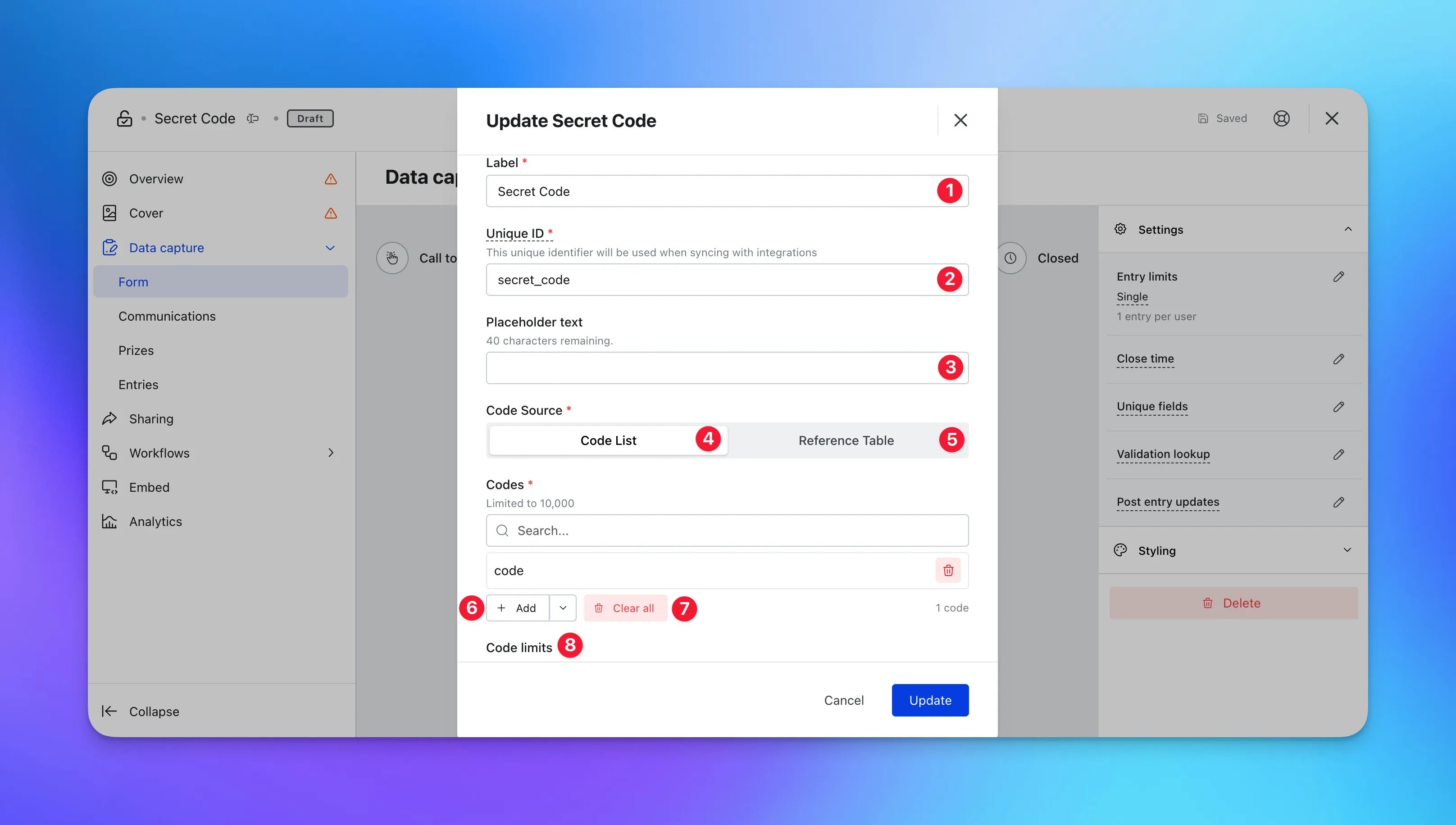
- Head into the Data capture tab and then click on Form
- At the top of the data capture, select Form
- Hover over the Secret Code field and then click edit
- (1) Here you can edit the label that appears on the form
- (2) This is the unique ID used to help track the analytics
- (3) Input placeholder text for the field
- (4) Use the code list if you have less than 10,000 codes
- (5) Use the reference table if you have more than 10,000 codes. Click here to learn how to upload your codes as a reference table
- (6) Clicking on + Add allows you to individually add codes to the list. Use the arrow to bulk upload codes
When bulk uploading your codes, ensure each code is on a separate line.
- (7) Use this option to remove all the codes uploaded
- (8) Select the restrictions for the secret code field:
- Unrestricted: No restrictions on how many times a code can be used. Entry is determined by the competition entry rule
- One per user: Each code can be used only once per user. This means that different users can use the same code, but each user can use it only once
- One per code: Each code can only be used once. Once a code is entered by a user, it becomes inactive and cannot be used again
Step 5: Publish your Card
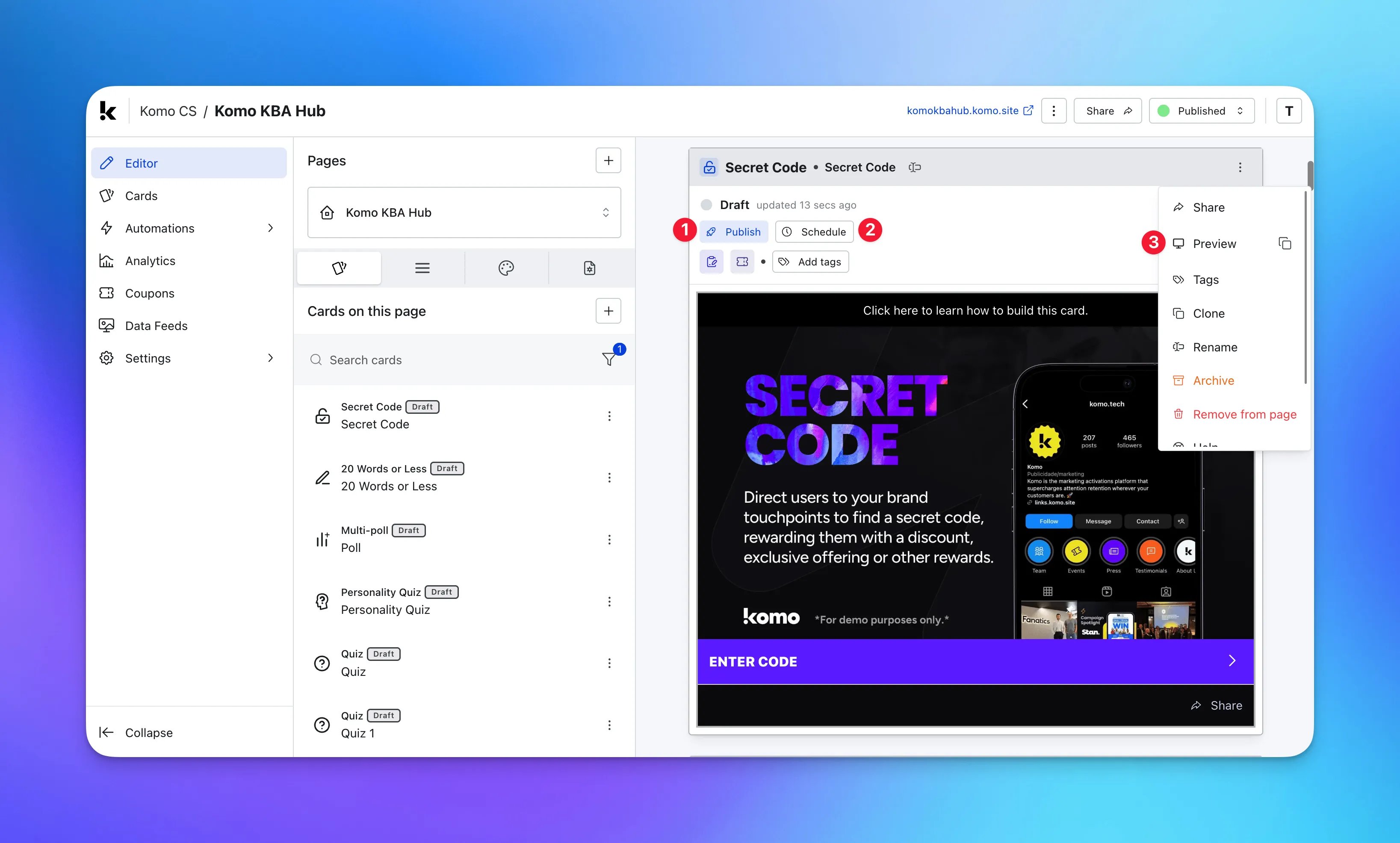
- (1) Publish your card manually for the world to see
- (2) Schedule your card to be published and unpublished at set dates and times
- (3) Click on the … to Preview and interact with the card on the front end from a user’s perspective before publishing it. See how to test your card here
All competition entries will be recorded and will impact the card analytics.
”Go Live” Checklist
Ready to go live with your Secret Code? We recommend reviewing the following list before launching and double-checking if you have:- All images uploaded are the correct dimensions. Export image files in 2x to ensure none of the images appear pixelated
- You have added your secret code in the form under the Secret Code field
- Hyperlinked your T&Cs to the opt-in field, which is created in the data capture section of the settings tab
- You have uploaded an image to the card cover and the form cover
- All your communications (Major Prize Winner, Minor Prize Winner, Everybody Else, Registration) are fully set up and ready to send
- If you are using coupons, make sure the coupons created are set up correctly. Check the coupon limits are set, the copy for each screen is right and you have linked the appropriate coupons to your communications
- Ensure your Prizes and the awarding rules are set up correctly
Terms & Conditions Template
Card Design Guidelines
Promotion
Stuck on how to promote your activation?
FAQ
Can I change the secret code to be a number? Yes. The secret code can be anything entered into a keyboard. Can the card accept more than one code? Yes, you can have different codes on one card. Follow Step 4 to learn more about how to upload multiple codes. Is the code case-sensitive? No. Codes are matched case-insensitively.What about special characters from iOS devices?
Komo automatically handles special characters that iOS devices substitute when typing. For example, iOS may replace straight quotes (' ") with curly quotes or hyphens (-) with en-dashes or em-dashes. These substitutions are normalized automatically, so codes entered on iOS devices match correctly even if the original code uses standard characters.
Top Tips
- Put the secret code on your socials. This means your audience will need to follow your accounts/visit your page frequently in order to find the secret code
- Make it fun by doing a ‘treasure hunt’ where your audience will need to find the secret code in a specific part of your website or socials
- Create riddles or hints to drive your audience to certain touchpoints or in-store to find the secret code
- Design a word search and have the secret code hidden within. This is a different and fun way of getting users involved!
- Add a list of unique secret codes that your audience can enter in addition to the secret code in the Data Capture form. Have unique codes at particular stores or certain social media accounts as this shows your audience has been there