
Watch it come to life
What is it?
Share locations and addresses on your Hub.How do I build one?
- Step 1: Add a Google Maps Embed card to your Hub
- Step 2: Paste the link to the card
- Step 3: Publish the card
Step 1: Add a Google Maps embed card to your Hub
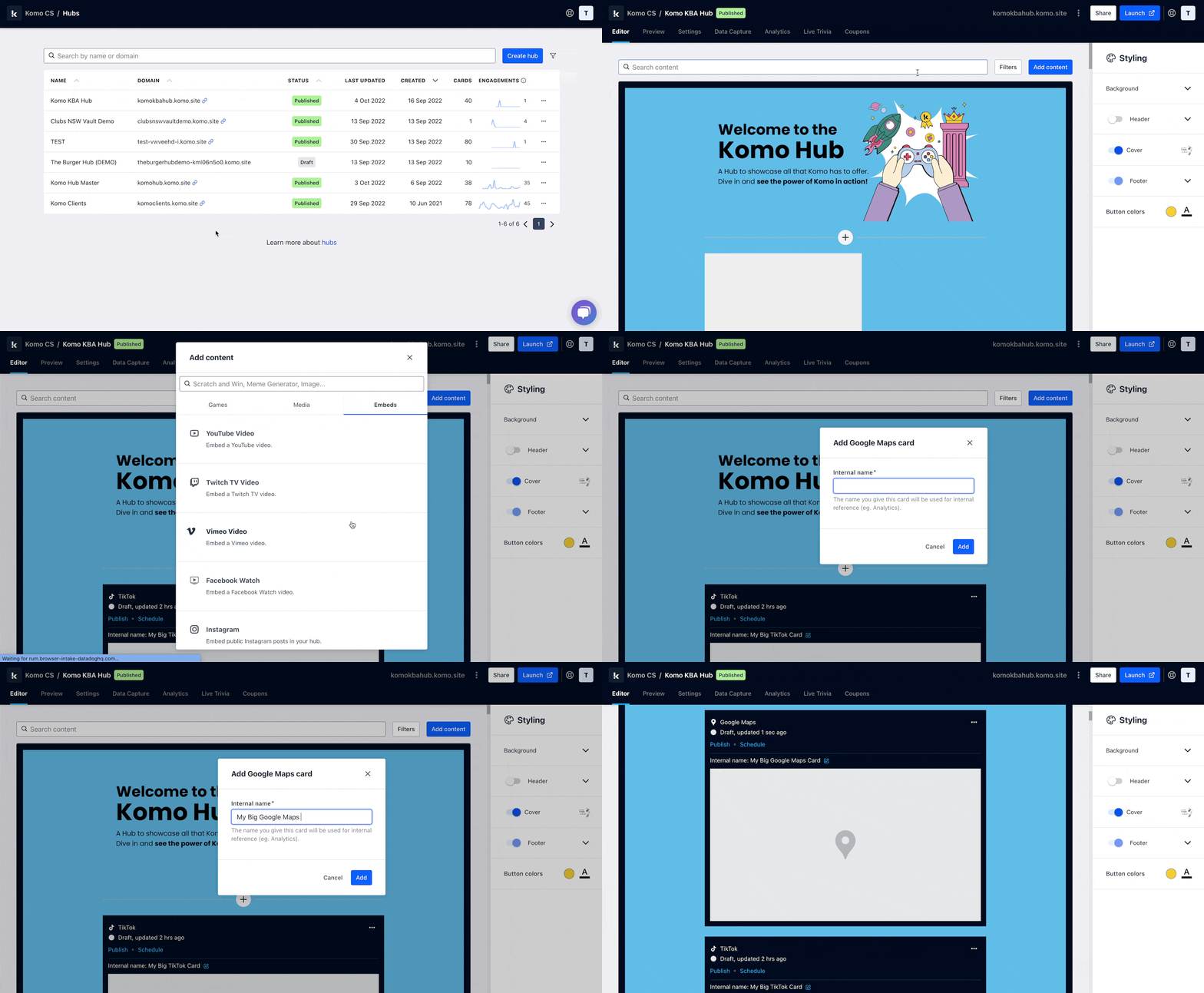
- Navigate to your Engagement Hub.
- Once there, click Add content, from here select Embeds and then Google Maps.
- You will then see your new card has been added to your Hub.
Step 2: Paste the link to the card
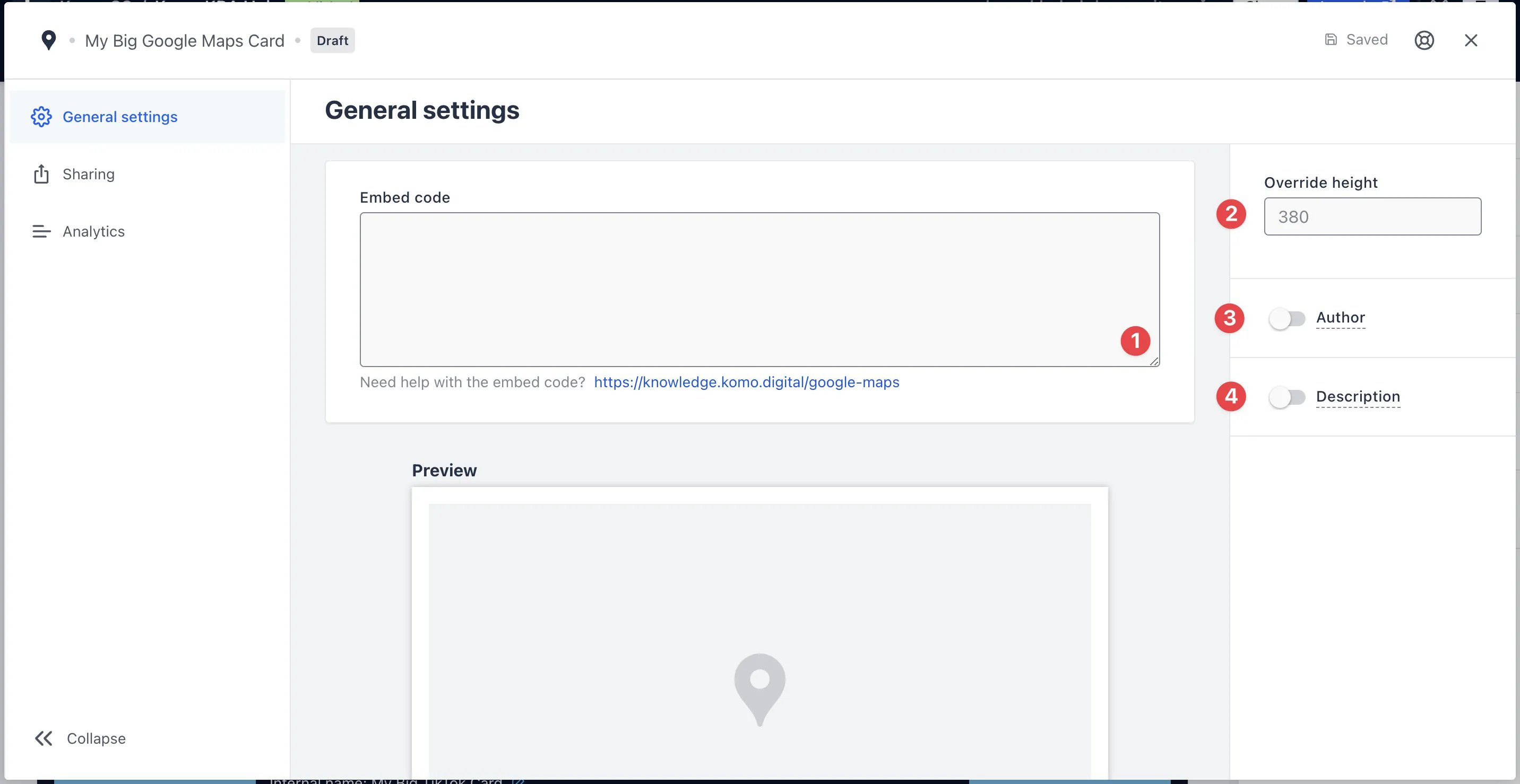
- Clicking on Google Maps will open the editing module.
-
(1) Get the embed code and paste it here and a preview will appear below.
Getting Google Maps embed code
1Find the address or place you want to embed on Google Maps.
Click on the Share button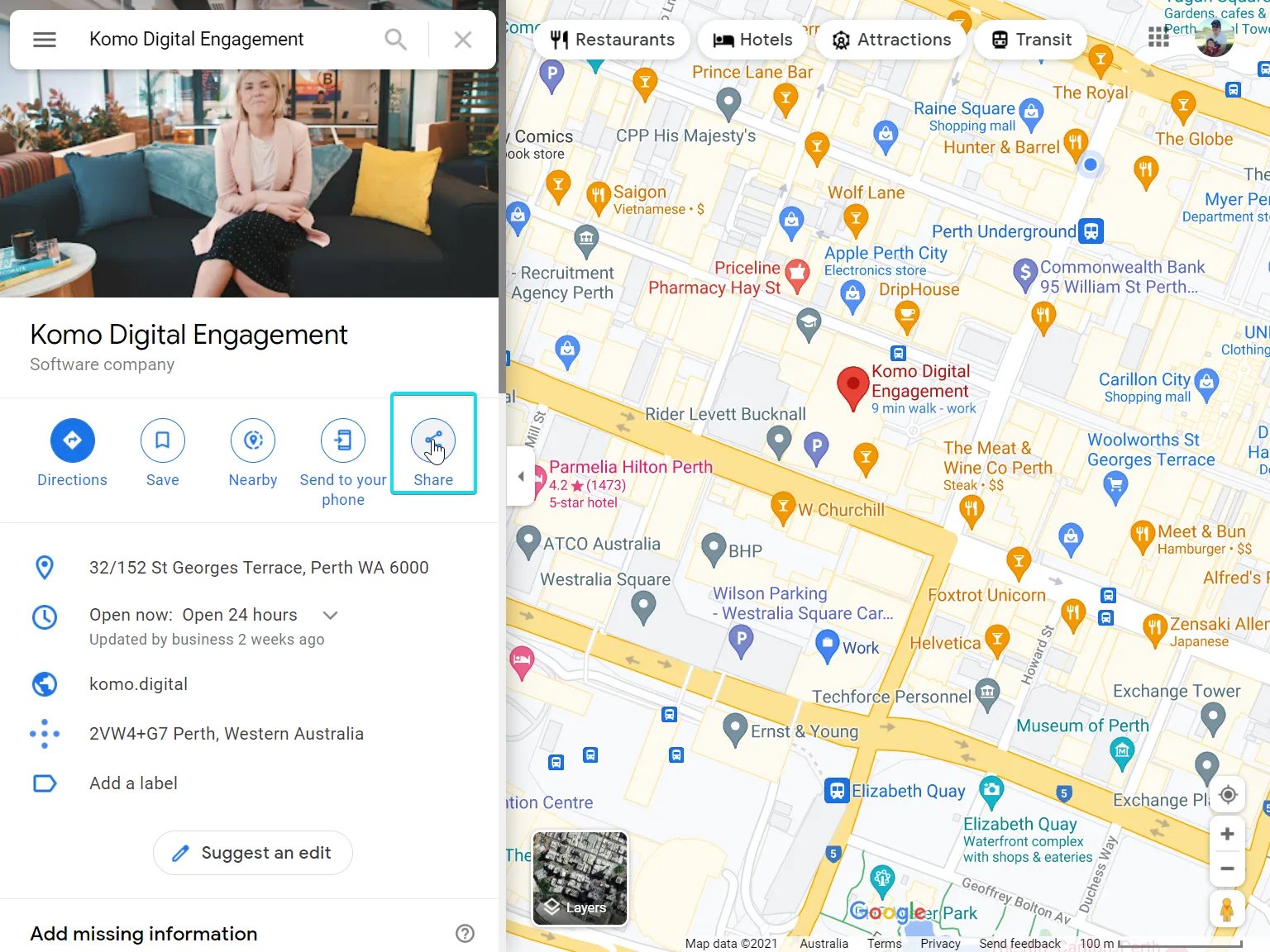 2
2Choose Embed a map
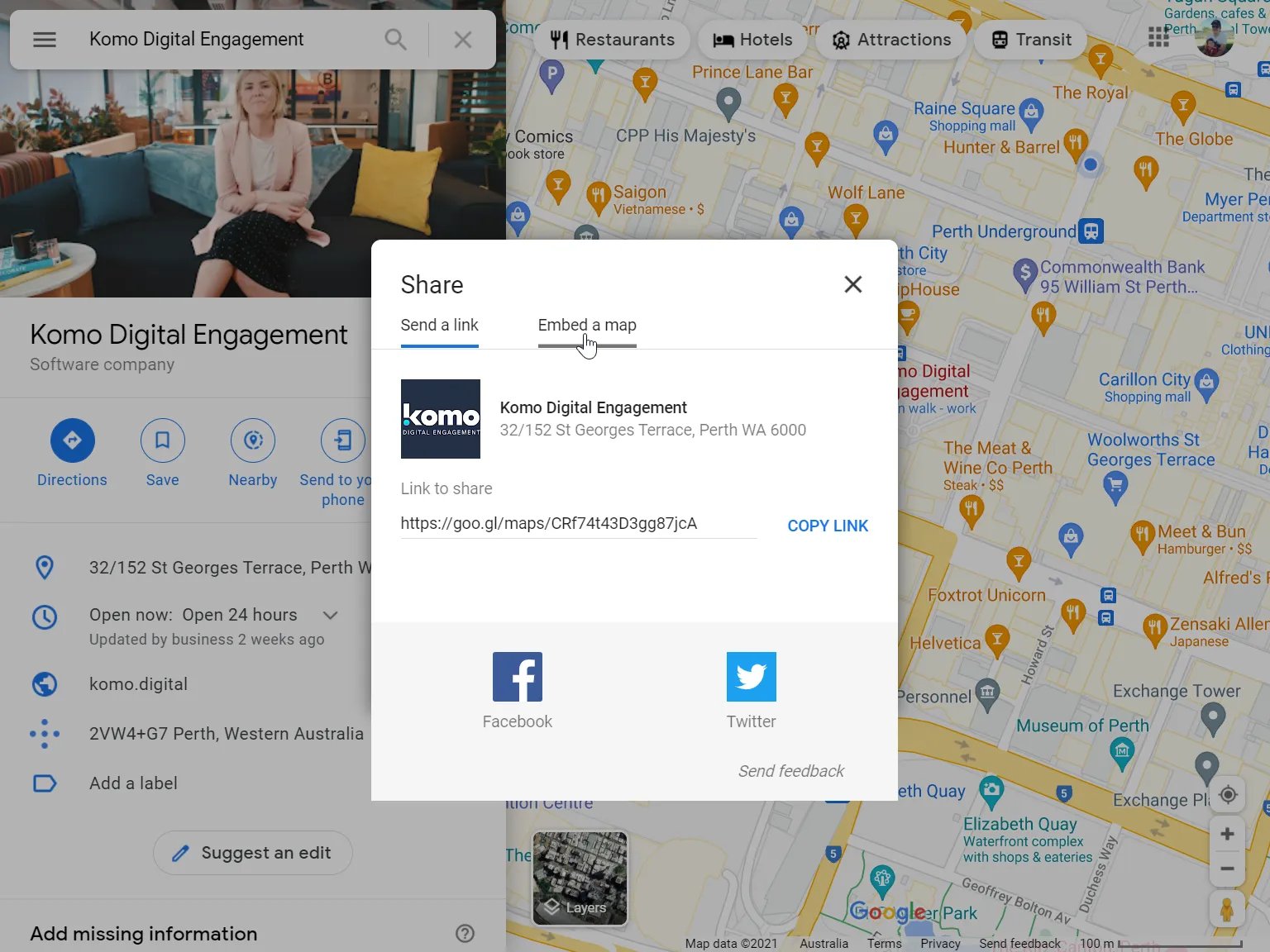 3
3Choose the size and click COPY HTML.
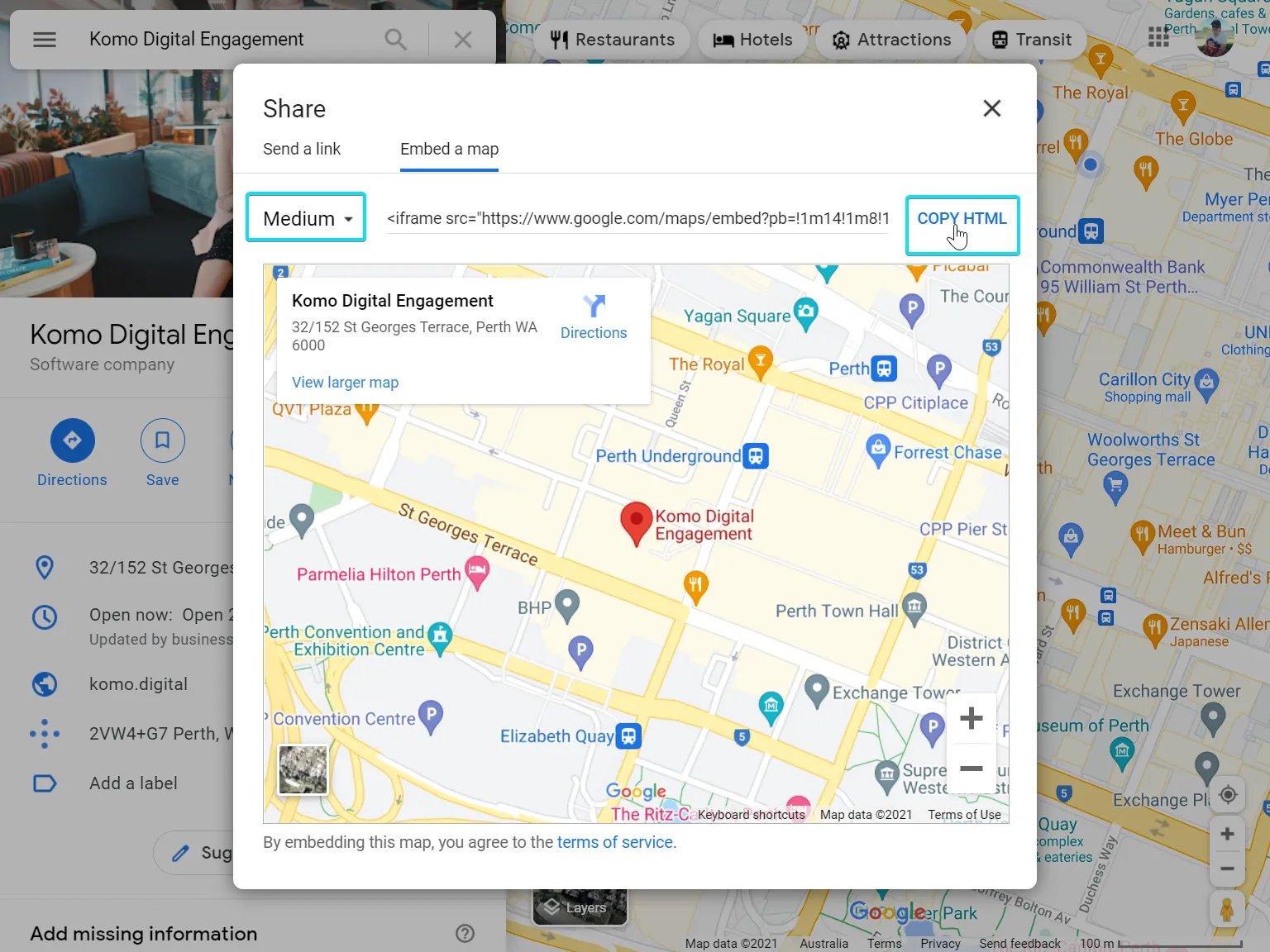 4
4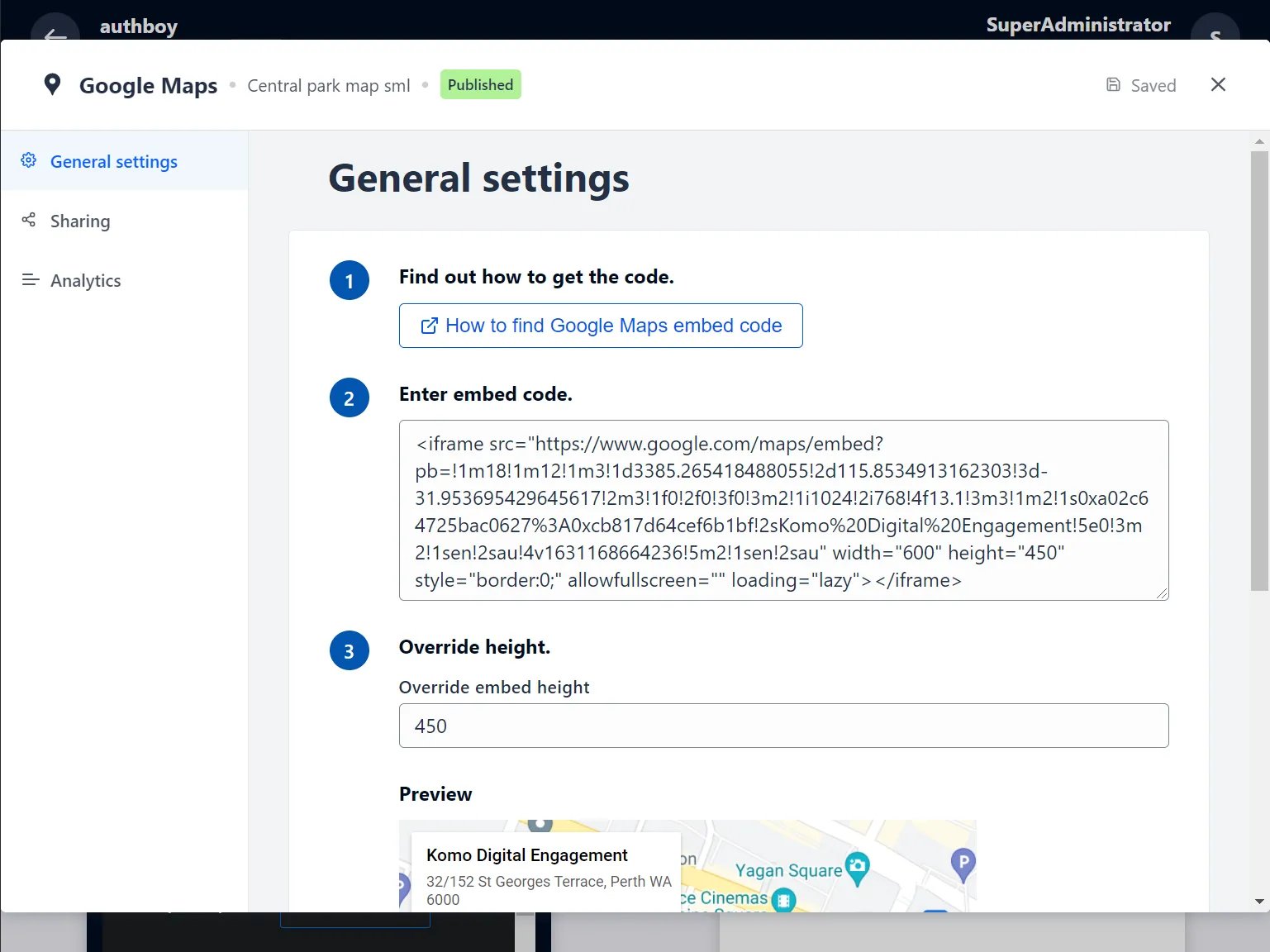
- (2) You can optionally override the card height after pasting in the embed code.
- (3) You can add an author tag by displaying the brand or person who’s responsible for the card content.
- (4) Add a description to the card.
Step 3: Publish your card
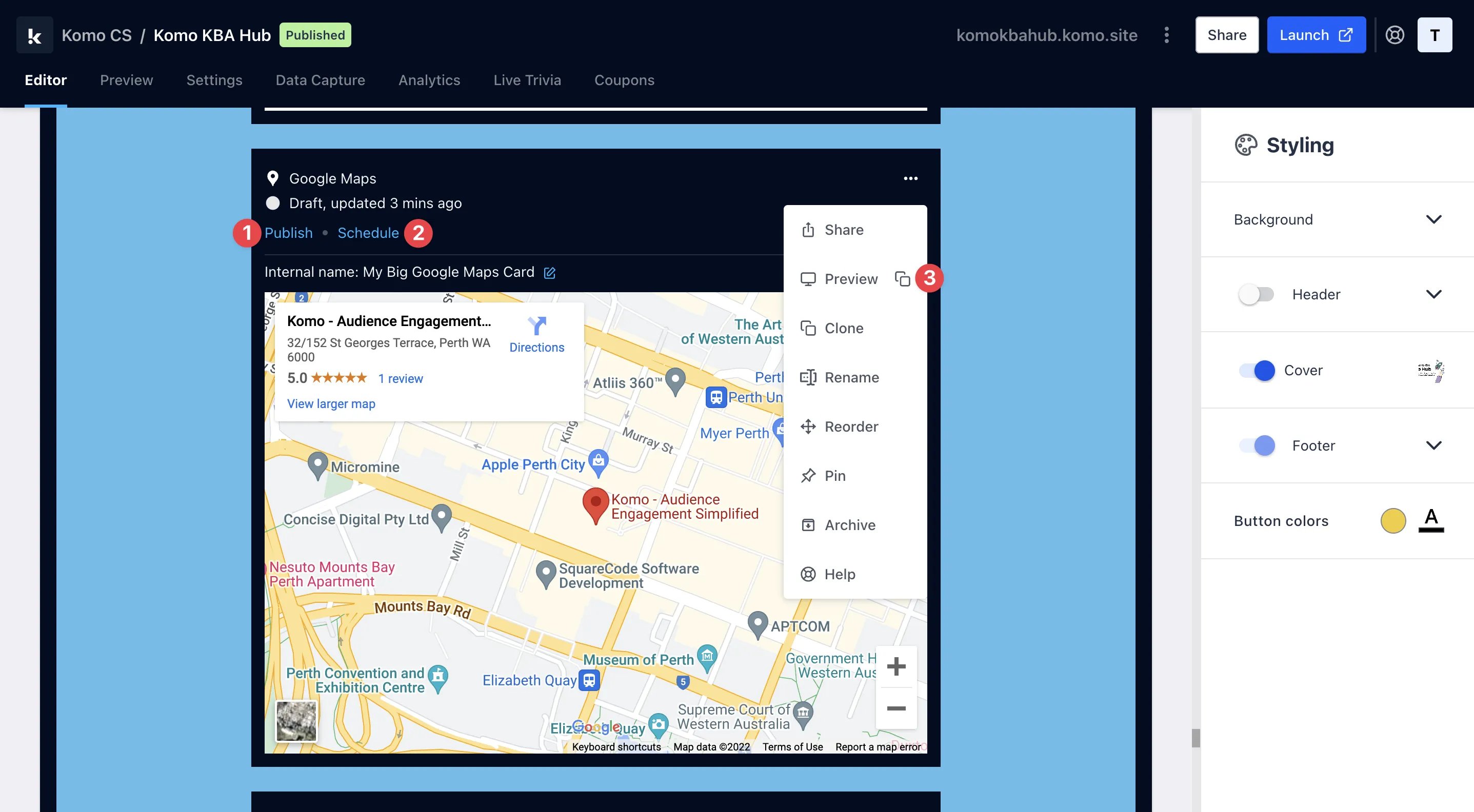
- (1) Publish your card manually and instantly for the world to see.
- (2) Schedule your card to be published and unpublished at set dates and times.
- (3) Click on … to Preview and interact with the card on the front end from a user’s perspective before publishing it.