
Watch it come to life
How do I build one?
Step 1: Add a Twitch TV Card to your Engagement Hub
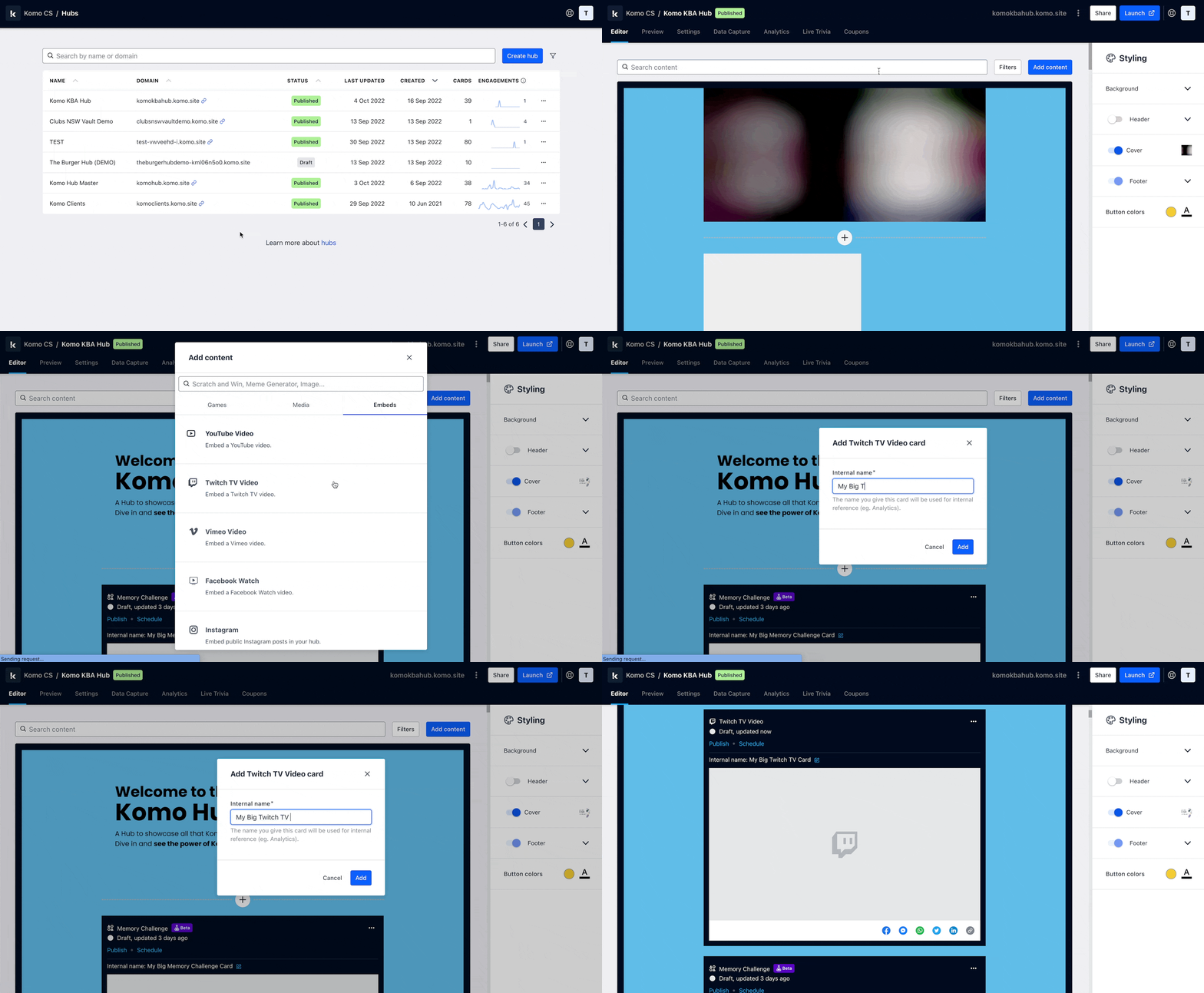
- Navigate to your Engagement Hub.
- Once there, click Add content, from here select Embeds and then Twitch TV.
- You will then see your new card has been added to your Hub.
Step 2: Set up your card link
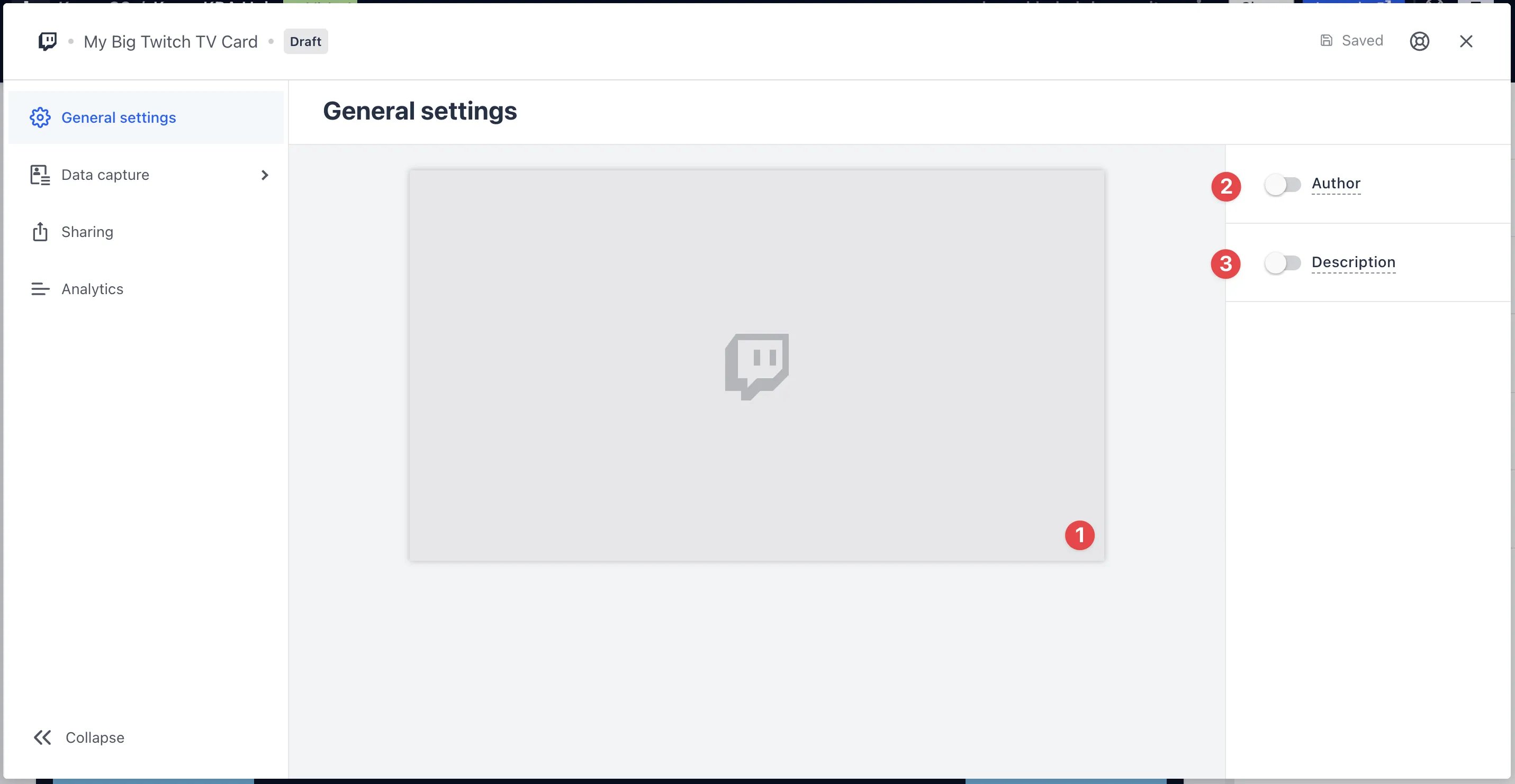
- Clicking on Twitch TV will open the editing module.
- (1) By clicking the placeholder cover image, paste your video URL. Learn more on how to get a video URL here.
- (2) You can add an author tag by displaying the brand or person who’s responsible for the card content.
- (3) Add a description to the card.
Step 3: Publish your card
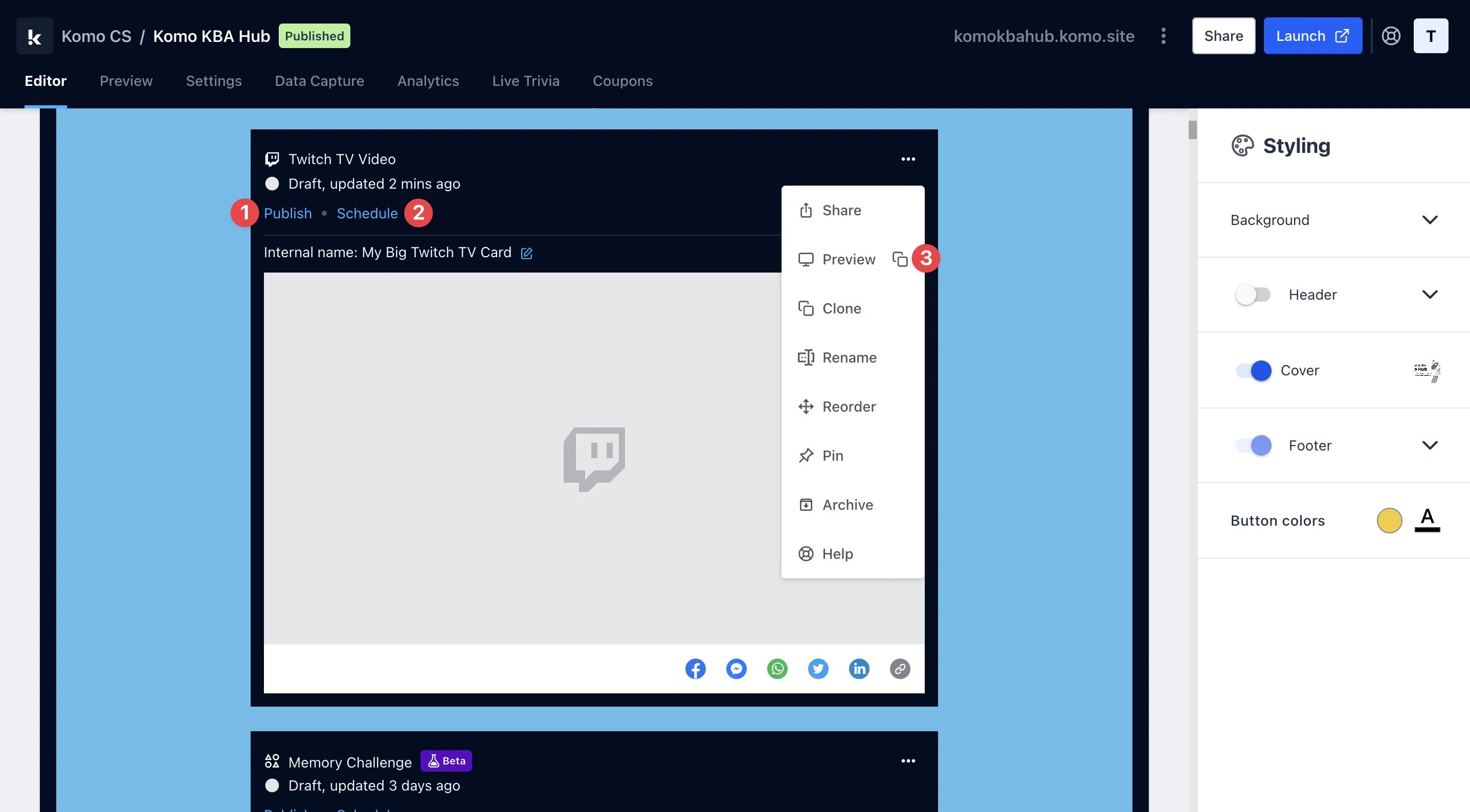
- (1) Publish your card manually and instantly for the world to see.
- (2) Schedule your card to be published and unpublished at set dates and times.
- (3) Click on .. to Preview and interact with the card on the front end from a user’s perspective before publishing it.
All competition entries will be recorded and will impact the card analytics.