
What is it?
The YouTube card makes it easy for you to share video content with your community, grow brand awareness, and boost conversion rates. The Komo Engagement Engine works seamlessly with YouTube to link videos directly in your Engagement Hub, supporting your brand and/or your sponsor family.Watch it come to life
How do I build one?
Step 1: Add a YouTube card to your Hub
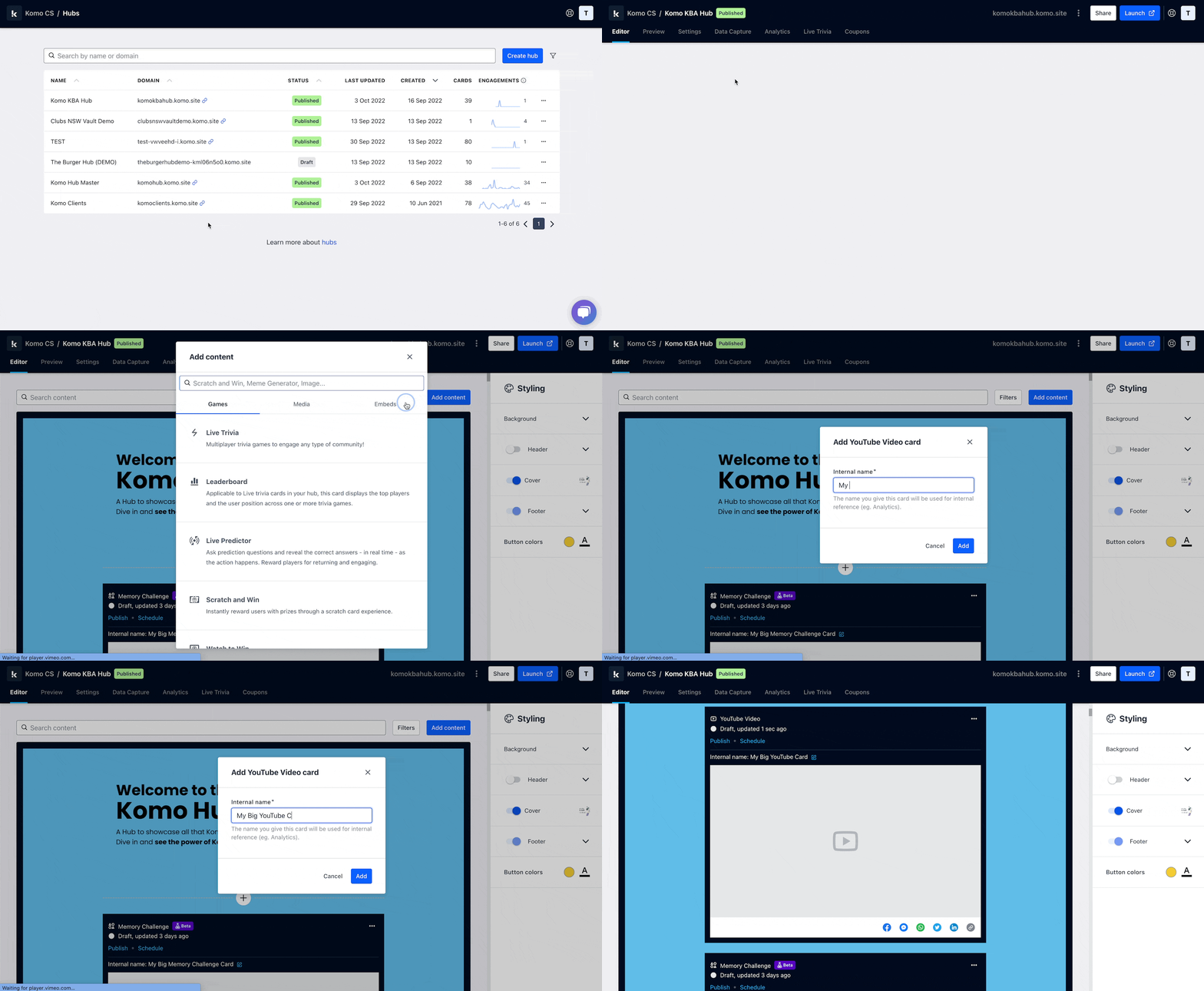
- Navigate to your Engagement Hub.
- Once there, click Add content, from here select Embeds and then YouTube.
- You will then see your new card has been added to your Hub.
Step 2: Set up your card link
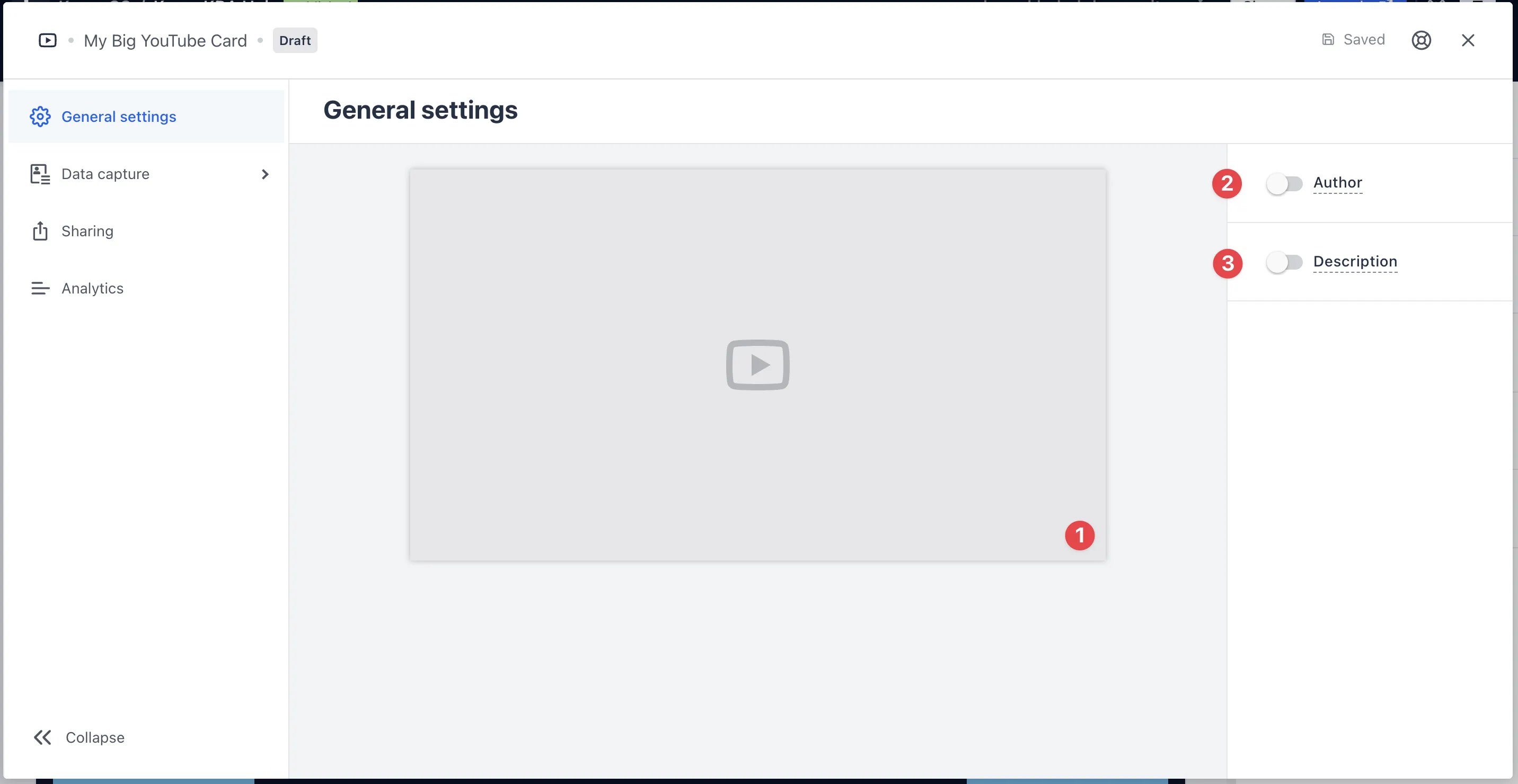
- Clicking on YouTube will open the editing module.
- (1) By clicking the placeholder cover image, paste your video URL. Learn more on how to get a video URL here.
- (2) You can add an author tag by displaying the brand or person who’s responsible for the card content.
- (3) Add a description to the card.
Step 3: Publish your card
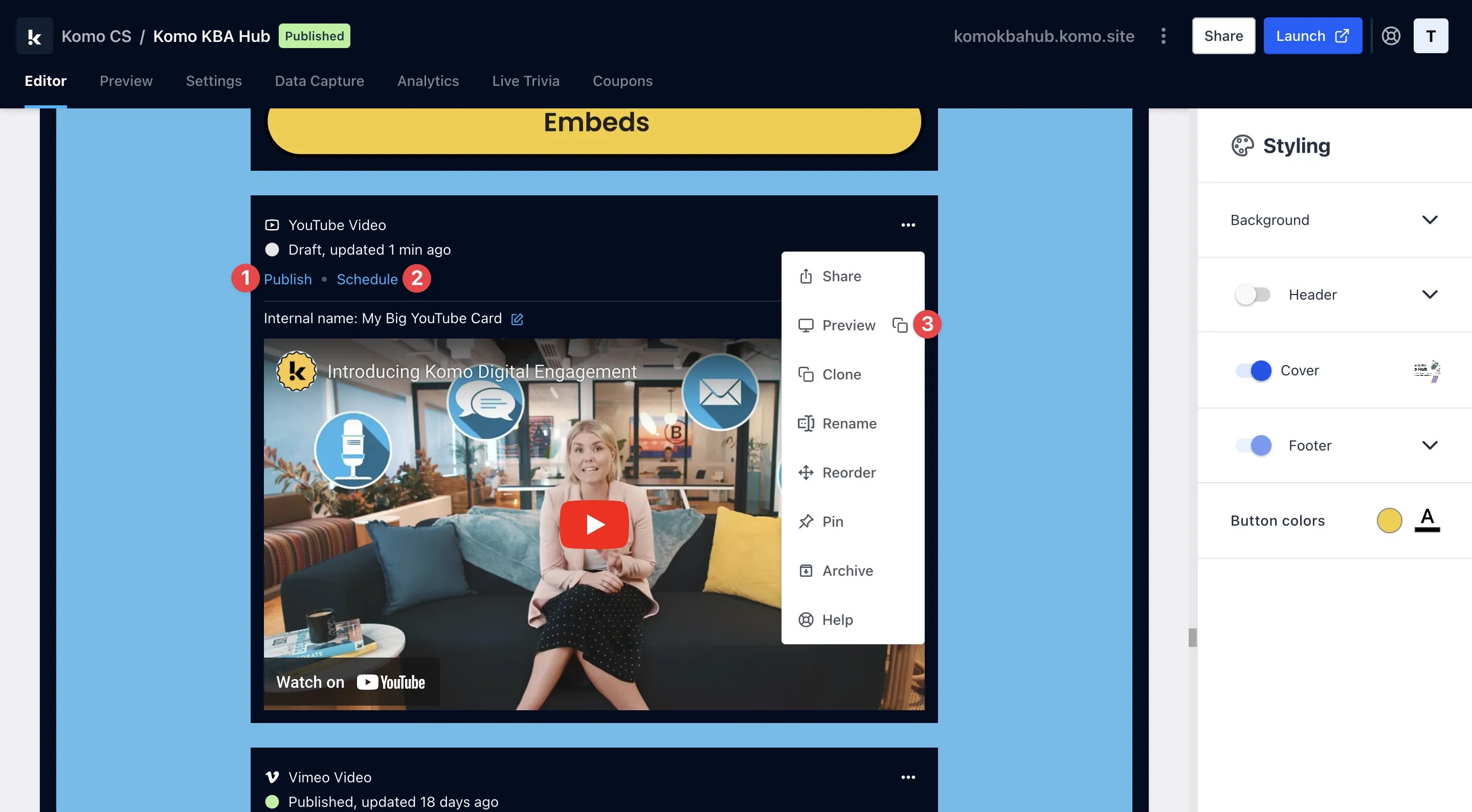
- (1) Publish your card manually and instantly for the world to see.
- (2) Schedule your card to be published and unpublished at set dates and times.
- (3) Click on … to Preview and interact with the card on the front end from a user’s perspective before publishing it.
All competition entries will be recorded and will impact the card analytics.