
What is it?
Share Facebook content on your Hub.Watch it come to life
Things to note
- Only Public Facebook content can be embedded.
- Only individual posts can be embedded - not entire timelines.
How do I build one?
- Step 1: Add a Facebook Embed card to your Hub
- Step 2: Paste the link to the card
- Step 3: Publish your card
Step 1: Add a Facebook Embed card to your Hub
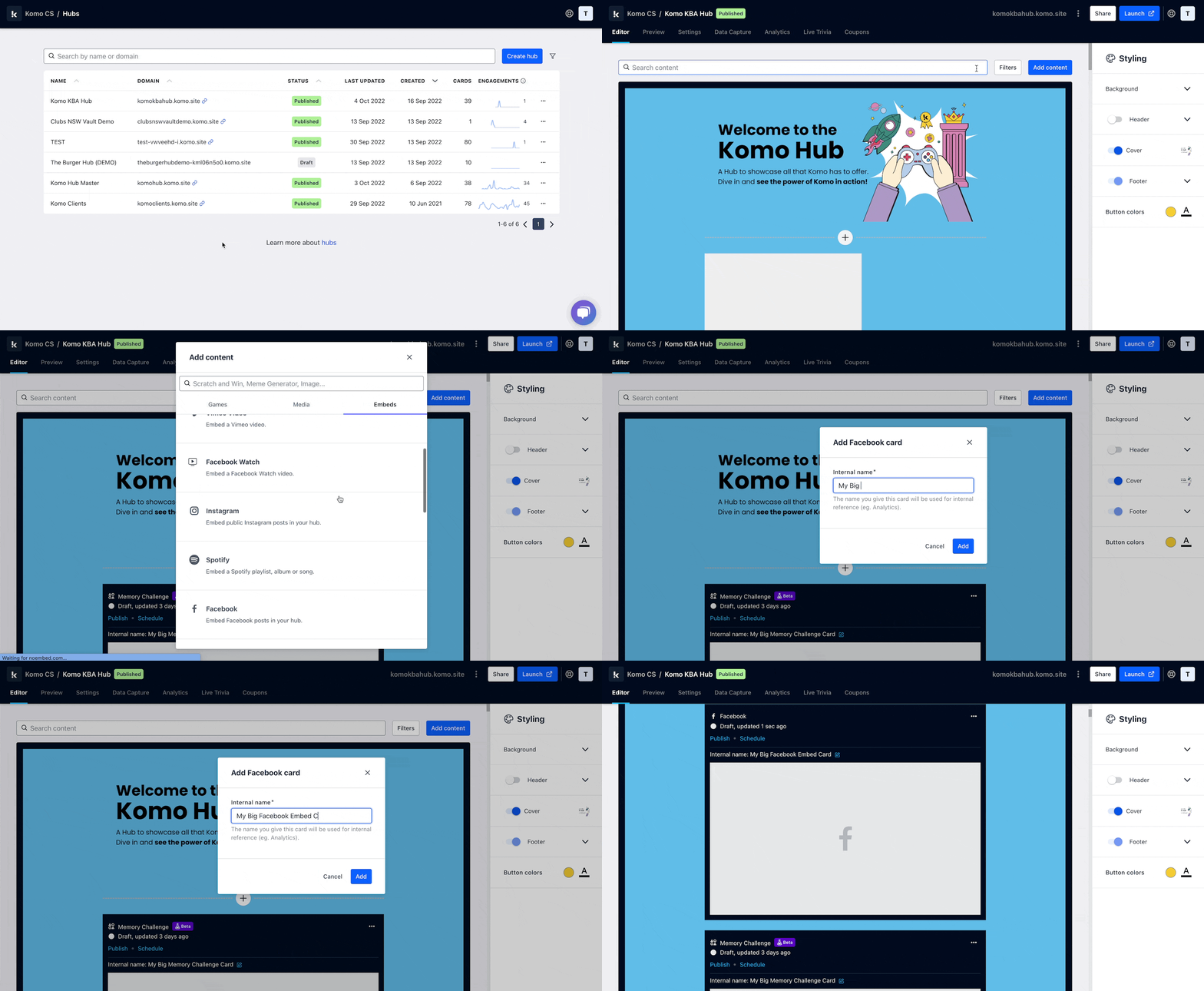
- Navigate to your Engagement Hub.
- Once there, click Add content, from here select Embeds and then Facebook.
- You will then see your new card has been added to your Hub.
Step 2: Paste the link to the card
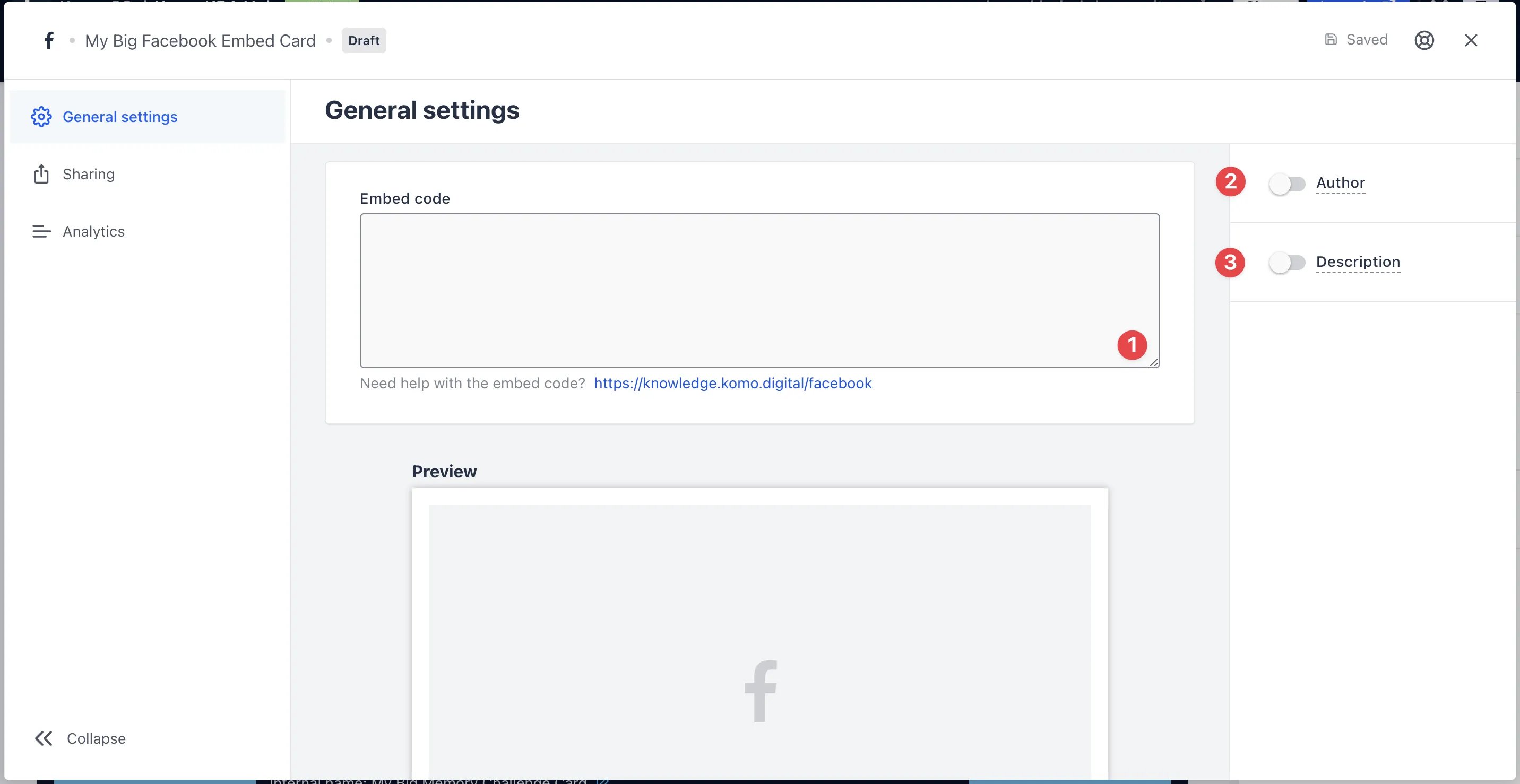
- Clicking on Facebook will open the editing module.
-
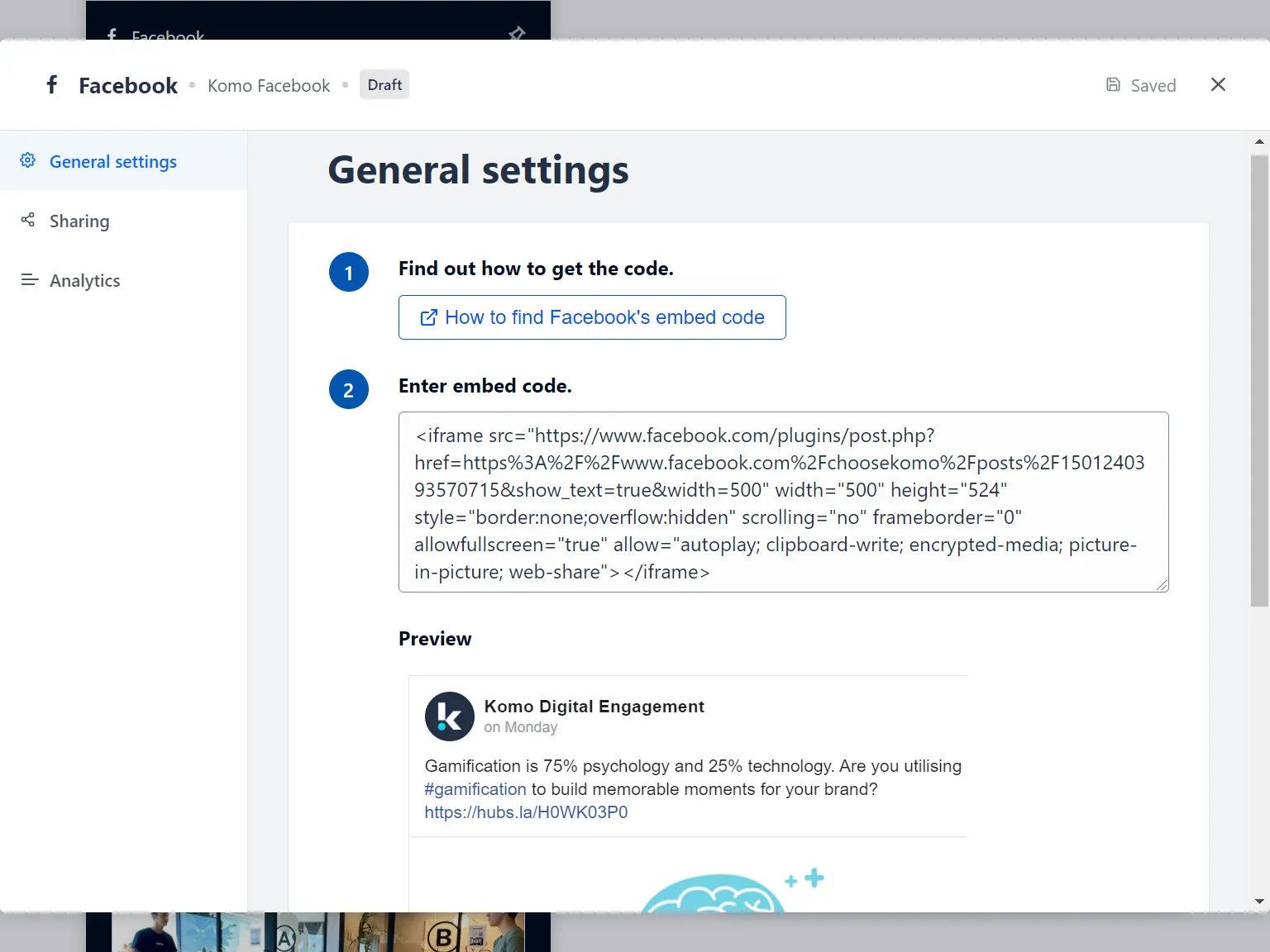
(1) Get the embed code and paste it here and a preview will appear below.
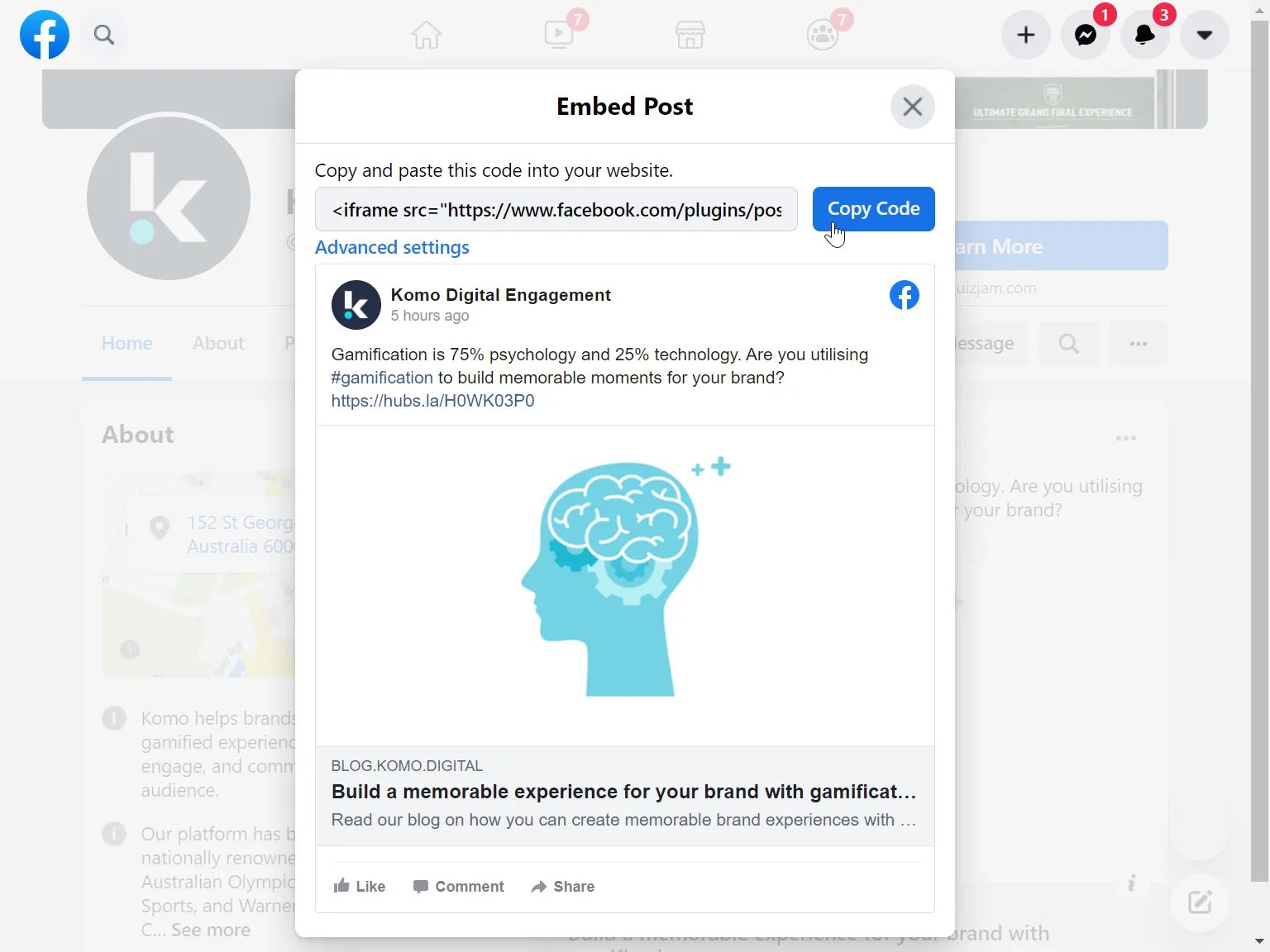
Getting the Facebook embed code
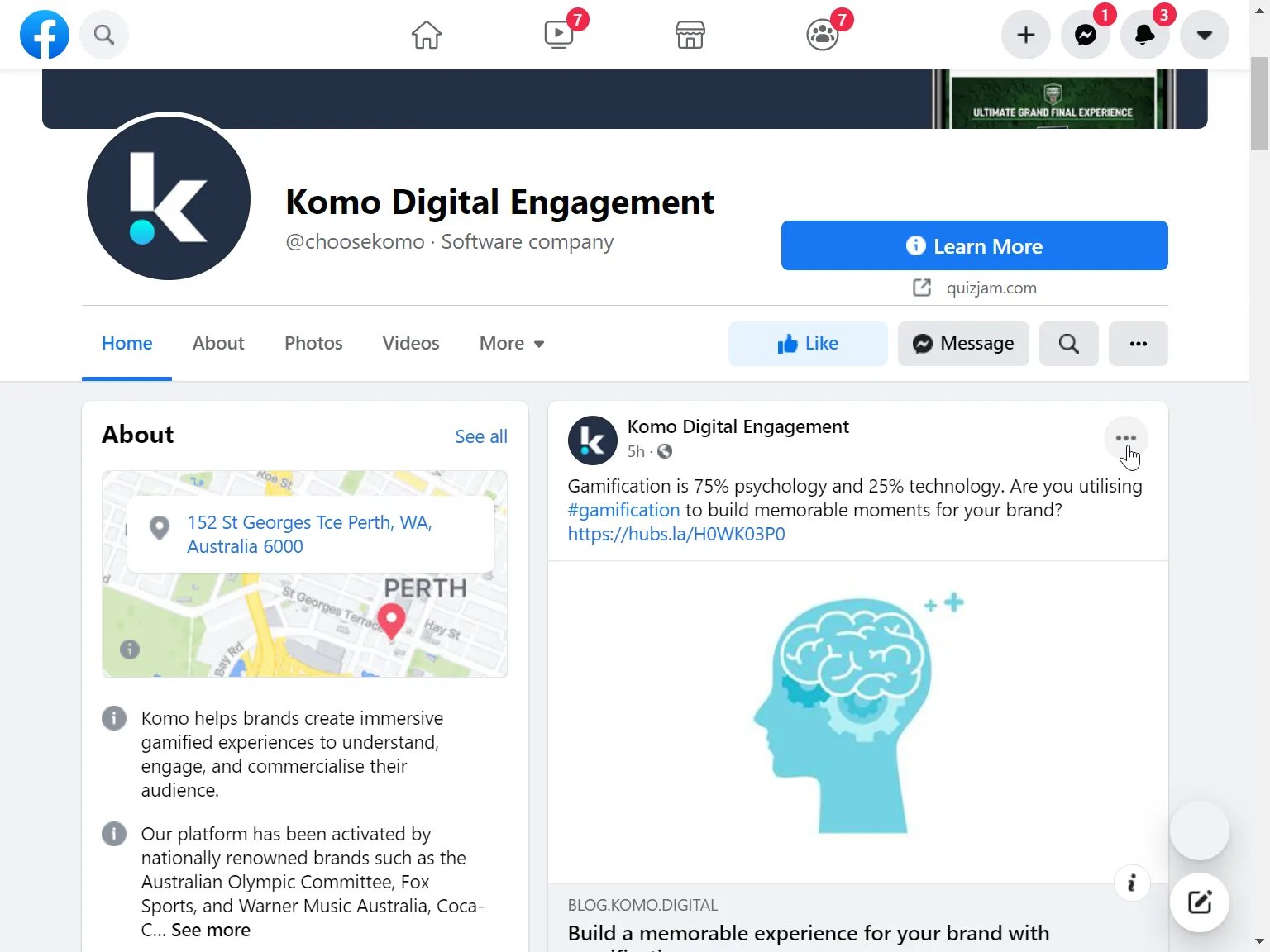
1Start by visiting the Facebook account with the post you want to embed. Click on the ... button at the top right of the post.
 2
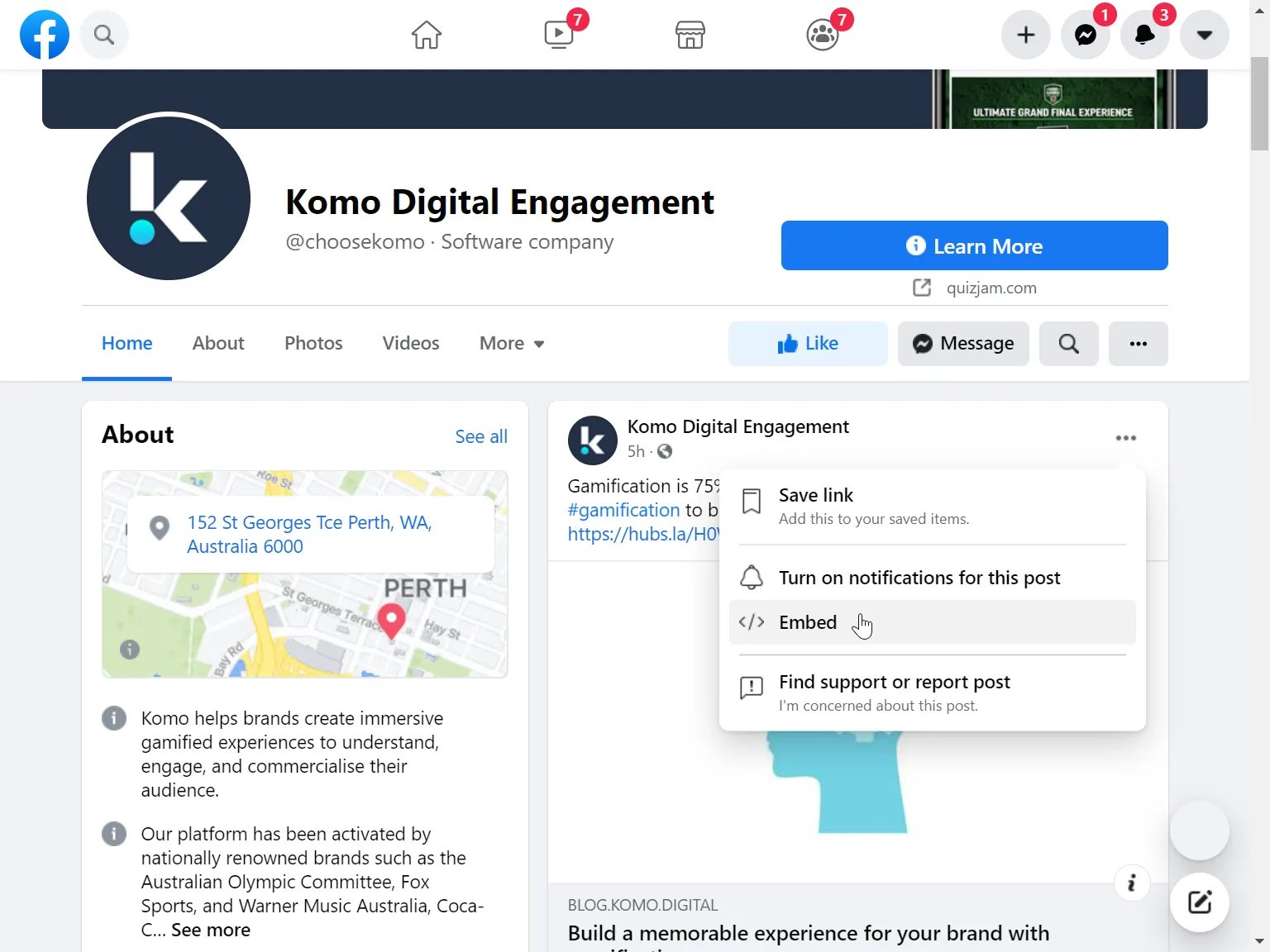
2Click the Embed </> button
 3
3Copy the code
 4
4Paste the code in your Facebook embed card on your Komo Hub.
- (2) You can add an author tag by displaying the brand or person who’s responsible for the card content.
- (3) Add a description to the card.
Step 3: Publish your card
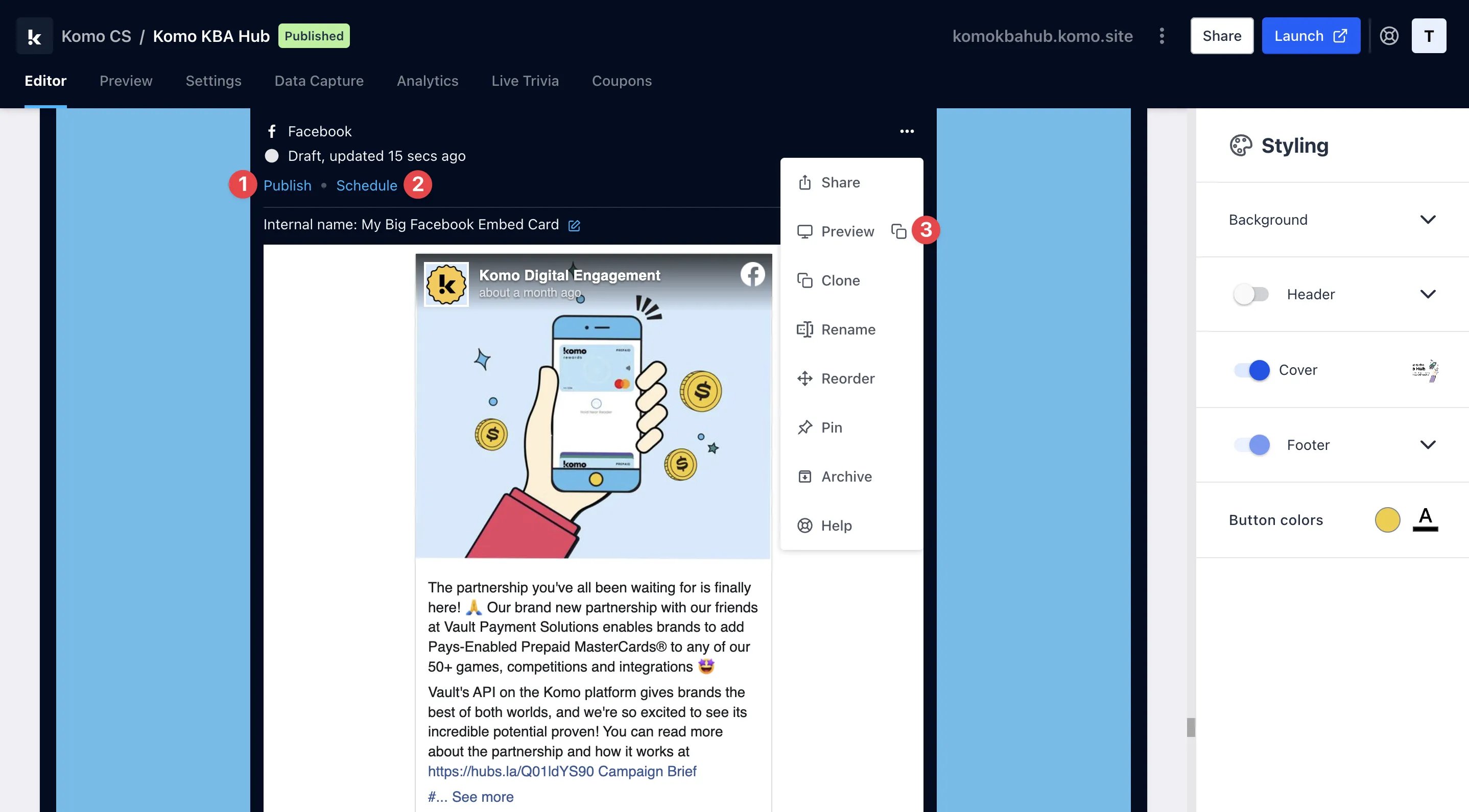
- (1) Publish your card manually and instantly for the world to see
- (2) Schedule your card to be published and unpublished at set dates and times.
- (3) Click on … to Preview and interact with the card on the front end from a user’s perspective before publishing it.
All competition entries will be recorded and will impact the card analytics.